
Modern web browsers like Google Chrome have evolved to support direct interaction with physical hardware, including Bluetooth, USB, Serial, and Human Interface Devices (HID). This capability allows web applications to communicate with everything from heart rate monitors to specialized industrial equipment directly through the browser interface. However, because these connections bypass traditional software layers, Chrome implements strict security protocols to ensure that websites cannot access your hardware without explicit, per-session authorization. This security model is built on the principle of least privilege, ensuring that a site only sees the specific hardware you intend to share.
When these connections fail, the issue is rarely a hardware malfunction but rather a configuration bottleneck within the browser's permission system. Troubleshooting involves navigating Chrome's site settings to verify that the necessary protocols are enabled and that the specific device has been correctly paired with the requesting URL. Understanding how to reset these permissions and manage device-specific access is essential for maintaining a stable connection between your web apps and your physical peripherals. By mastering these settings, you can ensure that your hardware remains secure while remaining fully functional for the web applications that require it.
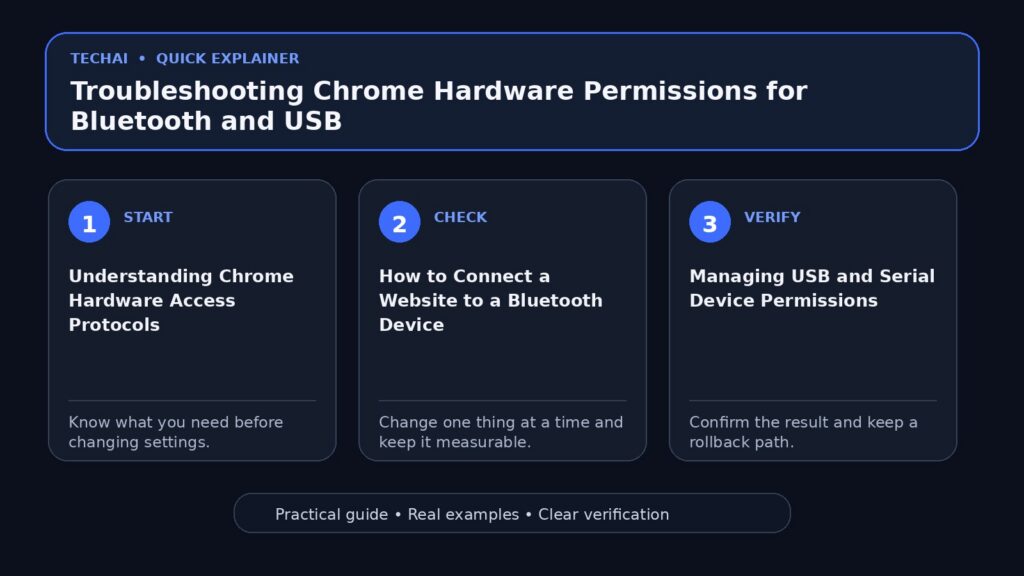
Understanding Chrome Hardware Access Protocols
Chrome utilizes specific APIs to bridge the gap between web code and physical hardware. The Web Bluetooth API allows websites to discover and communicate with devices over Bluetooth Low Energy (BLE), while the WebUSB and Web Serial APIs handle wired connections. These protocols are designed with a 'user-gesture' requirement, meaning a website cannot simply scan for devices in the background; you must click a button or trigger an action to initiate the connection prompt. This prevents malicious sites from silently identifying the hardware connected to your machine.

When a site requests access, Chrome generates a device picker—a small pop-up window listing compatible hardware found in your vicinity or connected via cable. Once you select a device and click 'Connect,' Chrome creates a temporary permission bond. This bond is site-specific, meaning granting access to one website does not give other websites permission to see that same device. This granular control is a core part of Chrome's privacy policy, ensuring that your hardware profile is not shared across the web without your knowledge.
Furthermore, these APIs are restricted to secure contexts. This means that a website must be served over HTTPS to even attempt a hardware connection. If you are working on a local development environment or an older HTTP site, Chrome will block the hardware request by default. This is a critical safety measure to prevent 'man-in-the-middle' attacks where an interceptor could potentially manipulate the data being sent to or from your physical device.
- Web Bluetooth: Used for wireless peripherals like sensors and wearables.
- WebUSB: Allows direct communication with USB devices without custom system drivers.
- Web Serial: Connects to microcontrollers and legacy serial hardware.
- HID (Human Interface Device): Manages specialized input hardware like gamepads.
How to Connect a Website to a Bluetooth Device
To connect a Bluetooth device to a website in Chrome, you must first ensure your computer's system-level Bluetooth is turned on. The website must be served over a secure connection (HTTPS) for the Bluetooth prompt to appear. When the site requests a connection, a list of available Bluetooth devices will appear near the address bar. It is important to note that the device must be broadcasting its presence; if it is already connected to another host, it will likely not appear in the Chrome device picker.
If the device you are looking for does not appear in the list, it may already be paired with another application or another browser tab. Bluetooth devices typically only allow one active connection at a time. Ensure the device is in 'pairing mode' if required by the manufacturer, and keep it within close physical proximity to your computer to ensure a stable signal during the initial handshake. If the signal is weak, the pairing process may time out, requiring you to restart the request from the web application.
Once the connection is established, Chrome will display a Bluetooth icon in the tab strip to indicate that the site is actively communicating with a peripheral. You can click this icon at any time to see which device is connected or to terminate the session. This visual feedback is a key security feature, allowing users to monitor hardware usage in real-time. If you close the tab or navigate away from the site, Chrome will automatically drop the connection to the Bluetooth device to preserve battery and security.
- Enable Bluetooth in your computer's system settings first.
- Click the 'Connect' or 'Pair' button provided by the web application.
- Select your specific device from the Chrome device picker pop-up.
- Wait for the 'Connected' status to appear in the browser interface.
Managing USB and Serial Device Permissions
Connecting a USB or Serial device follows a similar workflow but often requires specific hardware permissions within Chrome's settings. When you plug in a USB device, Chrome may detect it, but the website still needs your permission to 'claim' the interface. This is particularly important for Serial devices used in programming microcontrollers or debugging hardware, where the browser must act as the primary interface for the hardware's data stream.
You can manage these permissions by clicking the lock icon (or settings icon) located to the left of the URL in the address bar. This menu provides a quick view of which hardware the site is currently allowed to access. If a device was previously blocked, you can toggle the permission back to 'Ask' or 'Allow' from this menu to restore functionality. This is often the fastest way to resolve a 'Device Not Found' error when you know the hardware is physically connected.
For more complex setups, such as those involving multiple USB devices, Chrome allows you to manage each connection individually. If a website requires access to multiple ports, you will see a list of each granted permission under the site settings. It is a best practice to only grant access to the specific port or device needed for the task at hand, rather than allowing the site to see all connected USB peripherals.
- Use the address bar 'Lock' icon to view active hardware permissions.
- Check 'Site Settings' if the device picker fails to appear.
- Ensure the USB cable is data-capable, as some cables only provide power.
- Verify that no other software is currently using the COM or Serial port.
Troubleshooting Connection and Loading Errors
If a website fails to load the hardware interface, it may be due to a conflict with browser extensions or internal settings. Ad blockers and privacy extensions are common culprits, as they may mistakenly flag hardware communication scripts as tracking attempts. If you encounter a 'Required part of this site couldn’t load' error, try disabling extensions or using an Incognito window to rule out interference. This helps isolate whether the problem lies with the site's code or your specific browser configuration.

Network issues can also prevent the necessary drivers or web-app components from loading. Chrome requires a stable connection to verify site certificates before allowing hardware access. If the connection is marked as 'Not Secure,' Chrome will block Web Bluetooth and WebUSB by default to protect your data from being intercepted. Always check the address bar for a valid padlock icon before attempting to sync hardware.
In some cases, the issue may be related to JavaScript being disabled. Many hardware-heavy sites rely on complex scripts to manage the data buffer between the browser and the device. If JavaScript is blocked via browser settings or a security extension, the hardware APIs will fail to initialize. Ensuring that JavaScript is enabled for the specific domain is a fundamental step in troubleshooting any web-based hardware connectivity issue.
- Disable ad blockers or privacy extensions temporarily.
- Check if the site connection is secure (HTTPS).
- Try clearing the browser cache if the hardware interface is unresponsive.
- Test the device in a different browser to see if the issue is Chrome-specific.
Resetting Chrome Settings to Resolve Conflicts
When hardware permissions become corrupted or conflicting settings prevent a device from connecting, resetting Chrome to its default state can be an effective solution. This action reverts all site permissions, including those for Bluetooth and USB, back to their original 'Ask' state. It also disables extensions that might be interfering with the WebHID or Web Serial APIs, providing a clean slate for the browser's hardware communication layer.
To perform a reset, navigate to Chrome's 'Reset settings' menu. This will not delete your bookmarks or passwords, but it will clear temporary data and reset your startup page and default search engine. This is particularly useful if you have accidentally clicked 'Block' on a hardware prompt and cannot find the setting to reverse it. After the reset, return to the website and attempt the hardware connection again; you should receive a fresh prompt to allow the device.
Before performing a full reset, you might also consider clearing only the 'on-device site data.' This is a less invasive option found in the Privacy and Security settings. It removes the locally stored permissions and data for websites without affecting your global browser configuration. This is often enough to fix issues where a website 'remembers' a faulty connection state or a device that is no longer plugged in.
- Go to Chrome Settings > Reset settings.
- Select 'Restore settings to their original defaults.'
- Confirm the reset and restart the browser.
- Re-enable only the necessary extensions one by one.
Adjusting Site-Specific Permissions Manually
For more granular control, you can visit the 'Site Settings' page within Chrome. This area allows you to see every website that has requested access to your Bluetooth or USB devices. You can revoke access for specific sites or change the global behavior of how Chrome handles these requests. This is the central hub for managing your digital privacy as it relates to physical hardware.
If you find that a site is constantly asking for permission even after you've granted it, check if you are in Incognito mode. Chrome does not save hardware permissions across Incognito sessions for security reasons. For devices you use daily, ensure you are using a standard browsing profile so that the 'Remember my choice' option (if available) can function correctly. This prevents the repetitive task of re-pairing your hardware every time you open the browser.
You can also use the 'chrome://settings/content' shortcut to jump directly to the permissions manager. From here, look for 'Additional permissions' to find the specific toggles for Serial and HID devices. If you see a long list of 'Allowed' devices that you no longer use, it is a good security practice to remove them. This ensures that a site cannot re-establish a connection to a device without your explicit interaction in the future.
- Navigate to chrome://settings/content to see all permissions.
- Look for 'Additional permissions' to find Serial and HID settings.
- Remove old or unused devices from the 'Allowed' list.
- Ensure 'Sites can ask to connect' is toggled on.
Limitations of Browser-Based Hardware Access
While Chrome's hardware APIs are powerful, they have inherent limitations. For instance, Chrome cannot access devices that are already exclusively claimed by the operating system or another application. If you are trying to connect a Bluetooth mouse or keyboard via Web Bluetooth, it will likely fail because the OS manages those devices at a higher priority level to ensure basic system functionality.
Furthermore, certain mobile versions of Chrome may have restricted access to these APIs compared to the desktop version. On Android, for example, location services must often be enabled for Web Bluetooth to function, as scanning for Bluetooth devices can theoretically be used to determine a user's physical location. This is a privacy-focused limitation imposed by the underlying operating system rather than Chrome itself.
Finally, hardware must be compatible with standard protocols. If a USB device requires a proprietary, non-standard driver to function, the WebUSB API may not be able to communicate with it effectively. Chrome works best with devices that adhere to standard class specifications, such as HID for input devices or CDC for serial communication. Always check the manufacturer's documentation to see if the device supports generic web-based access.
- System-managed devices (keyboards/mice) are often inaccessible.
- Only one tab can typically control a hardware device at a time.
- Mobile versions may require Location Services for Bluetooth.
- Hardware must be compatible with standard USB/Serial protocols.
Key takeaways
- Chrome requires HTTPS (secure connections) for all hardware-related APIs.
- Hardware permissions are site-specific and must be granted via a user gesture.
- Bluetooth devices can usually only connect to one application or tab at a time.
- Resetting Chrome settings can resolve persistent permission conflicts.
- Extensions like ad blockers can interfere with hardware communication scripts.
Common mistakes to avoid
- Attempting to connect hardware on a non-secure (HTTP) website.
- Forgetting to enable system-level Bluetooth or plugging into a power-only USB cable.
- Having the device already paired with another app, which blocks Chrome's access.
- Ignoring the 'user gesture' requirement—you must click a button to trigger the prompt.
Useful TechAI links
FAQ
Why doesn't my Bluetooth device show up in the Chrome list?
Ensure the device is in pairing mode and not connected to another phone or computer. Also, verify that Bluetooth is enabled in your system settings and that the website is using HTTPS.
Can I use USB devices in Incognito mode?
Yes, but permissions are not saved. You will have to grant access every time you open the site in a new Incognito session because Chrome clears this data upon closing the window.
How do I stop a website from accessing my USB device?
Click the lock icon in the address bar and find the device under the permissions list, then click the 'X' or 'Reset' button to revoke access. This immediately terminates the site's ability to communicate with that hardware.
Does Chrome support all USB devices?
Chrome supports many devices via WebUSB, but it cannot access devices that require specific, exclusive system drivers like some printers or external hard drives. It works best with standard protocols like HID or Serial.