
Your browser is one of the most exposed applications on a computer or phone because it handles logins, downloads, extensions, notifications, and many different websites. A few sensible settings can improve security and privacy without making everyday browsing difficult.
Update the browser first
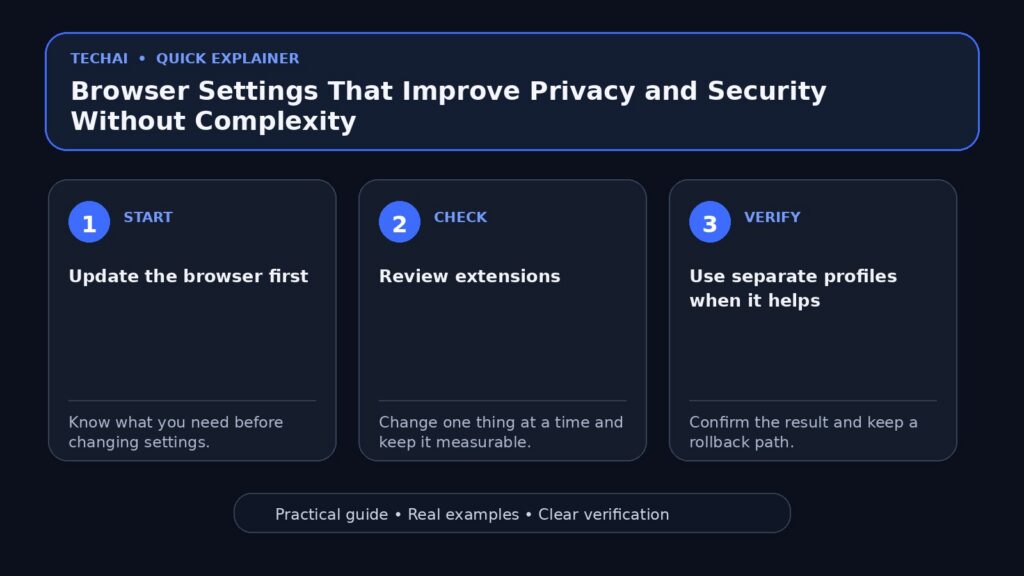
Security settings are less useful if the browser itself is outdated. Enable automatic updates where practical and restart the browser when an update requires it.

Review extensions
Remove extensions you no longer use and check the permissions of the ones you keep. An extension that can read and change data on every website has broad access, so install only extensions you trust and actually need.
Use separate profiles when it helps
A separate work or sensitive-account profile can reduce accidental cross-use of cookies, extensions, and logins. Profiles are not a replacement for device security, but they can make organization and risk boundaries clearer.
Control website permissions
Review camera, microphone, location, clipboard, and notification permissions. Prefer “ask” or limited access instead of permanently allowing every site.
Notifications are not necessary for every site
Browser notifications can be abused for spam and fake alerts. Allow them only for services where real-time browser notifications provide clear value.
Use HTTPS, but do not treat it as proof of trust
HTTPS protects the connection between you and the site. It does not prove that the site itself is honest. Phishing sites can also use valid HTTPS certificates.
Third-party cookies and tracking
Modern browsers provide different controls for cross-site tracking and third-party cookies. Stronger blocking can improve privacy but may affect some embedded services or sign-in flows, so choose the setting that matches your needs and review exceptions carefully.
Clear site data when needed, not blindly
Deleting all cookies constantly signs you out and can reduce convenience without solving every privacy problem. Remove site data when troubleshooting, after using a shared device, or when you specifically want to reset a site’s stored state.
Pay attention to downloads
Keep browser download warnings enabled. Before opening an unexpected installer or archive, confirm that it came from the official source and that you intended to download it.
Saving passwords
The browser’s password manager can help prevent password reuse. If you need cross-browser features, advanced sharing, or a different security model, compare it with a dedicated password manager rather than disabling password management entirely.

Private browsing mode
Private or incognito mode mainly limits what is stored locally after the session. It does not make you anonymous to websites, your internet provider, your employer, or every service on the network.
DNS and built-in protection features
Many browsers offer secure DNS and protections against known malicious sites. Review these features and understand who provides the DNS service before changing defaults.
Monthly browser checklist
- Install updates.
- Remove unused extensions.
- Review site permissions.
- Check notification access.
- Review saved downloads and unusual prompts.
- Confirm your important accounts use strong authentication.
Make the browser part of your account-security plan
Browser security works best alongside unique passwords, two-factor authentication, device updates, and a recovery plan for important accounts.
When do you need an extra extension?
Add an extension only when the browser does not already provide the function you need and the benefit justifies the permissions. Fewer extensions mean fewer components with access to your browsing data.
Use fewer extensions instead of one for every problem
Installing many “security” add-ons can create new privacy and compatibility problems. Start with built-in protections and add only carefully selected tools.
Separate sensitive accounts from random browsing
If you regularly visit unknown sites or test downloads, consider doing that work in a separate browser profile from banking, work administration, and other sensitive accounts.
Review downloads before you run them
A downloaded file is not safe just because the browser finished downloading it. Verify the publisher and source, especially for installers, scripts, and archives.
A 10-minute browser security review
Once a month, do one short review instead of changing settings constantly. Update the browser, remove extensions you no longer use, review camera and microphone permissions, check recent downloads, and confirm that saved passwords or autofill are protected by your device account.
- Keep only extensions you recognize and still need.
- Remove permanent site permissions that no longer make sense.
- Review download history for installers or archives you did not expect.
- Restart after updates so the new version is actually running.
The goal is a smaller, understandable browser setup—not the maximum number of privacy switches.
Conclusion
Keep the browser updated, minimize extensions, limit permissions, and treat downloads and unexpected prompts carefully. These habits improve security without requiring a complicated setup.