
When Google Chrome becomes slow, freezes, crashes, or refuses to load a page, the fastest fix is not always a reinstall. A better approach is to isolate the cause in a safe order: check whether the problem is limited to one site, reduce resource pressure, test extensions, update Chrome, and only then reset or reinstall.
This guide follows reversible troubleshooting steps first. It is designed for desktop Chrome on Windows, macOS, and Linux, although several checks also apply to mobile devices. Before changing anything important, save unfinished work and make sure you know how your bookmarks and passwords are stored.
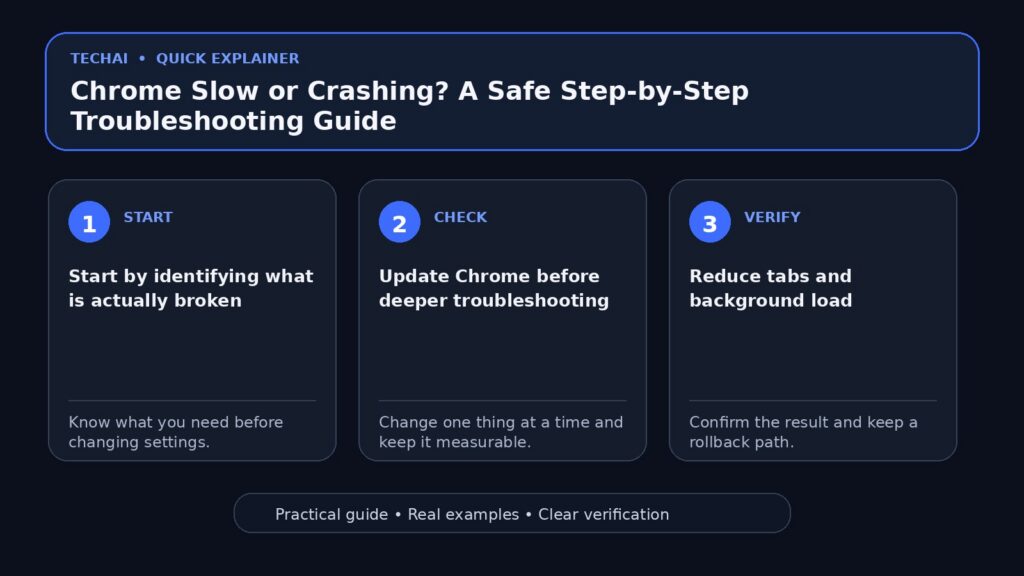
Start by identifying what is actually broken
Before changing settings, ask one simple question: is Chrome itself failing, or is one website failing? Open two or three unrelated, reputable websites. If only one site has a problem, the site’s server, cookies, permissions, or connection path may be responsible. If many sites fail in Chrome but work in another browser, focus on Chrome. If they fail everywhere, investigate the network or device instead.

Google’s Chrome Help recommends checking the URL, reloading the page, testing the internet connection, and trying the affected page in Incognito mode when diagnosing loading errors. Incognito is useful as a diagnostic because it can help separate normal-profile behavior from extension or stored-data problems.
1. Update Chrome before deeper troubleshooting
An outdated browser can leave you with bugs that have already been fixed and may also miss current security updates. On desktop, open Chrome’s menu, choose Help, then About Google Chrome. Chrome checks for updates on that page. If an update is ready, relaunch the browser to apply it.
Do not download a supposed Chrome update from a pop-up, advertisement, file-sharing site, or third-party installer page. Use Chrome’s built-in updater or Google’s official Chrome website.
2. Reduce tabs and background load
If Chrome is slow rather than completely broken, resource pressure is a good early suspect. Close tabs you are not using and temporarily quit other heavy applications. Google notes that more open tabs make Chrome work harder and recommends closing unused tabs as a performance step.
Chrome also has its own Task Manager on desktop. Open the menu, choose More tools, then Task Manager. Sort by memory usage and look for a tab, extension, or background process using unusually high resources. End only a task you recognize and do not need; unsaved work in that task can be lost.
If your computer is generally low on storage or memory, browser symptoms may be only part of the problem. TechAI’s Windows storage cleanup guide explains safer ways to reclaim space without deleting system files blindly.
3. Test the problem without extensions
Extensions can modify pages, network requests, search behavior, and browser features. A broken or conflicting extension can therefore look like a Chrome problem. First try the affected site in an Incognito window. If the issue disappears, extensions or profile data become stronger suspects.
Next, open Extensions > Manage Extensions and temporarily disable extensions. Test Chrome again. If performance returns to normal, re-enable extensions one at a time until the problem returns. This is slower than deleting everything, but it tells you which change matters and avoids unnecessary data loss.
Remove extensions you no longer need, especially ones you do not recognize. If you are evaluating a new browser add-on or application, use the checks in our safe app and permissions checklist before installing it.
4. Use Chrome’s built-in security checks
Unexpected redirects, suspicious extensions, repeated warnings, or altered settings deserve a security check rather than random cleanup utilities. Chrome includes Safety Check and Safe Browsing features. Google says Safe Browsing can warn about dangerous sites, downloads, and extensions.
Chrome offers Standard and Enhanced Safe Browsing. Standard protection is the default, while Enhanced protection can provide warnings about potential new dangers but sends additional security-related information to Google for analysis. That privacy-versus-protection tradeoff means there is no single setting that is ideal for every person; review Google’s explanation before changing the level.
If you save passwords in Google Password Manager, its Checkup can identify saved passwords that are exposed in known breaches or are weak. If a password is reported as compromised, change it on the affected service rather than merely dismissing the warning. For broader account hygiene, see TechAI’s password manager setup guide.
5. Diagnose pages that load incorrectly
When one page fails while other sites work, start with the least destructive actions: verify the address, reload, and test the page in another browser. Then try Incognito. If the page works there, disable extensions and test again before deleting browsing data.

Clearing cookies can sign you out of websites, so do not treat it as the first step. If you decide to clear browsing data, understand the selected time range and data types before confirming. For a single-site problem, consider removing data only for that site rather than wiping everything.
If the same page fails in multiple browsers, the cause may be the website, firewall, antivirus configuration, DNS, router, or internet connection. Avoid disabling security software permanently just to make a site load. Instead, check whether it is blocking the connection and restore protection after the diagnostic test.
6. Check hardware acceleration when Chrome crashes
Google lists hardware acceleration as one area to test when Chrome crashes. On desktop, open Settings > System and change Use hardware acceleration when available, then restart Chrome and retest. Treat this as a diagnostic change: if it does not help, you can restore the previous setting.
This test is particularly useful when crashes seem related to graphics-heavy pages, video, or rendering. It is not a universal speed boost, and disabling it unnecessarily can shift more work to the CPU.
7. Reset Chrome only after simpler tests
If extensions and ordinary settings changes do not identify the problem, Chrome can restore settings to their original defaults. Google states that a settings reset does not delete saved bookmarks or passwords, but it does change items such as the default search engine, startup behavior, pinned tabs, content settings, cookies and site data, extensions, and themes.
On desktop, go to Settings > Reset settings > Restore settings to their original defaults. Read the confirmation before proceeding. A reset is broader than disabling one extension, so it belongs near the end of the troubleshooting sequence rather than at the beginning.
8. Reinstall only when the earlier steps fail
If Chrome will not open, continues crashing after the checks above, or its settings interface is unavailable, reinstalling can be reasonable. Before uninstalling, verify that important bookmarks, passwords, or other browser data are backed up or synchronized in the way you expect.
Download the installer only from Google’s official Chrome download page. Google currently lists desktop support requirements on its installation page, so check compatibility there rather than relying on old third-party articles.
A quick troubleshooting checklist
- Confirm whether one site, Chrome, or the whole connection is affected.
- Save work, close unnecessary tabs, and restart Chrome.
- Update Chrome through Help > About Google Chrome.
- Try the problem page in Incognito mode.
- Temporarily disable extensions, then re-enable them one by one.
- Use Chrome Task Manager to identify resource-heavy browser tasks.
- Run Safety Check and review Safe Browsing settings.
- Clear site data only when it is relevant to the symptom.
- Test hardware acceleration if crashes appear graphics-related.
- Reset Chrome only after narrower fixes fail.
- Reinstall from Google’s official source as a final step.
What not to do
Avoid registry-cleaner utilities, unknown “browser repair” downloads, unofficial Chrome installers, and instructions that ask you to disable antivirus or firewall protection permanently. Also avoid deleting an entire browser profile before confirming that important local data is backed up. Troubleshooting is more reliable when you change one thing at a time and test after each change.
Sources & Useful Links
- Google Chrome Help: Speed up Google Chrome
- Google Chrome Help: Fix Chrome if it crashes or won’t open
- Google Chrome Help: Fix connection and loading errors
- Google Chrome Help: Reset Chrome settings to default
- Google Chrome Help: Update Google Chrome
- Google Chrome Help: Choose your Safe Browsing protection level
- Google Account Help: Manage passwords in Chrome