Wireless connectivity issues often stem from a complex interaction between hardware integrity, software configuration, and external service availability. A systematic approach to troubleshooting ensures that you do not waste time on complex software fixes when the issue might be a simple service outage or a hardware limitation. By following the official protocols established by major technology providers, users can isolate variables and identify the root cause of network instability across different operating systems and devices.
This guide leverages official support frameworks to provide a structured path for restoring connectivity. We will explore how to utilize native diagnostic applications, verify hardware standards, and check global service statuses. Whether you are managing a Windows-based PC, an Apple ecosystem, or Google-connected devices, these steps prioritize official resources and verified repair paths to ensure long-term device health and security.
Verifying Hardware Integrity and Power Standards
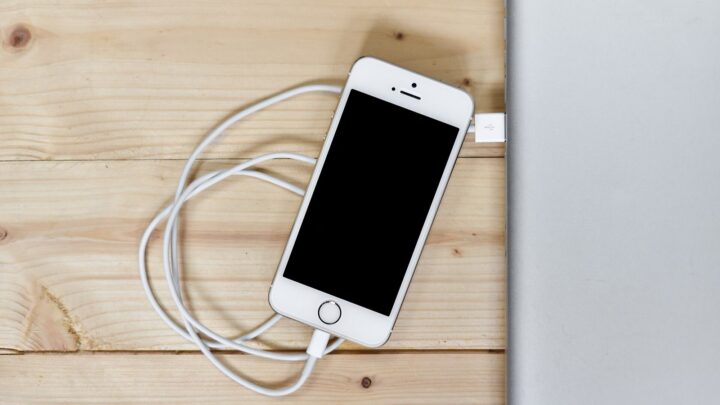
The foundation of a stable Wi-Fi connection is the physical health of the device and its power supply. Official guidance from Apple emphasizes that using genuine parts is critical for maintaining the intended performance of a device. Counterfeit or third-party power adapters may not be designed properly, which can lead to safety issues and potentially interfere with the sensitive radio components required for wireless networking.
When troubleshooting, inspect your power source and battery health. Apple recommends visiting an Authorized Service Provider to ensure you receive genuine batteries, as non-genuine components can compromise the overall functionality of the device. This is particularly relevant for portable devices where power management directly impacts the strength and stability of the Wi-Fi radio signal. Ensuring that your hardware is not physically damaged is the first step in any diagnostic process, as internal antenna damage can cause intermittent signal drops that software updates cannot resolve.
- Use only official or certified power adapters to avoid electrical interference.
- Check for physical damage to the device that might affect internal antennas.
- Verify battery health through official diagnostic tools to ensure consistent power delivery.
- Ensure all peripheral accessories are certified to prevent signal shielding.
Utilizing Native Diagnostic and Health Tools
Modern operating systems include built-in applications designed to assess the overall health of the system, which can indirectly affect network performance. For Windows users, the PC Health Check app is a primary resource for evaluating if the system is functioning within optimal parameters. This tool can help identify if the device meets the necessary system requirements for the current version of the operating system, which is essential for driver compatibility.
Microsoft also provides specific troubleshooting paths for 'Network & Internet' issues within their support structure. These native troubleshooters are designed to reset internal configurations and check for common software conflicts. Using these tools first is a recommended step before attempting manual configuration changes, as they are designed to handle the complexities of the Windows environment safely. Additionally, users should consult official support videos, such as those on the Apple Support YouTube channel, to see visual walkthroughs of common diagnostic procedures.
- Run the PC Health Check app to verify system requirements and performance.
- Access the 'Troubleshoot & Repair' section in Windows settings for automated fixes.
- Use official support videos for visual walkthroughs of diagnostic steps.
- Check for specific service programs, like the Mac mini Service Program, if hardware power issues are suspected.
Managing Software Updates and Driver Compatibility
Outdated software is a frequent cause of intermittent Wi-Fi connectivity. Microsoft highlights the importance of Windows Update for maintaining 'Drivers & Devices.' Network adapters require specific drivers to communicate with the operating system, and these are often updated to resolve bugs or improve compatibility with new router standards. Regularly checking for the latest updates ensures that your hardware has the most recent instructions for maintaining a connection.
In addition to OS updates, firmware for connected devices like Google Nest or Google Wifi should be kept current. These updates often address security vulnerabilities and performance bottlenecks. If a device is not connecting, verifying that it is running the latest supported version of its software is a critical step in the systematic troubleshooting process. Always refer to the 'Windows Update: FAQ' if you encounter installation errors during this process to ensure the update completes successfully.
- Check Windows Update regularly for the latest network adapter drivers.
- Review the 'Windows Update: FAQ' for help with installation errors.
- Ensure your device meets the minimum system requirements for the latest OS version.
- Verify that all connected smart home hubs are updated via their respective apps.
Identifying External Service and Network Outages
Before assuming the problem lies with your local hardware, it is essential to rule out external service outages. Google provides a Workspace Status Dashboard that tracks the uptime of various digital services. If you can connect to your local Wi-Fi but cannot access specific applications or the broader internet, checking these dashboards can confirm if the issue is on the provider's end.
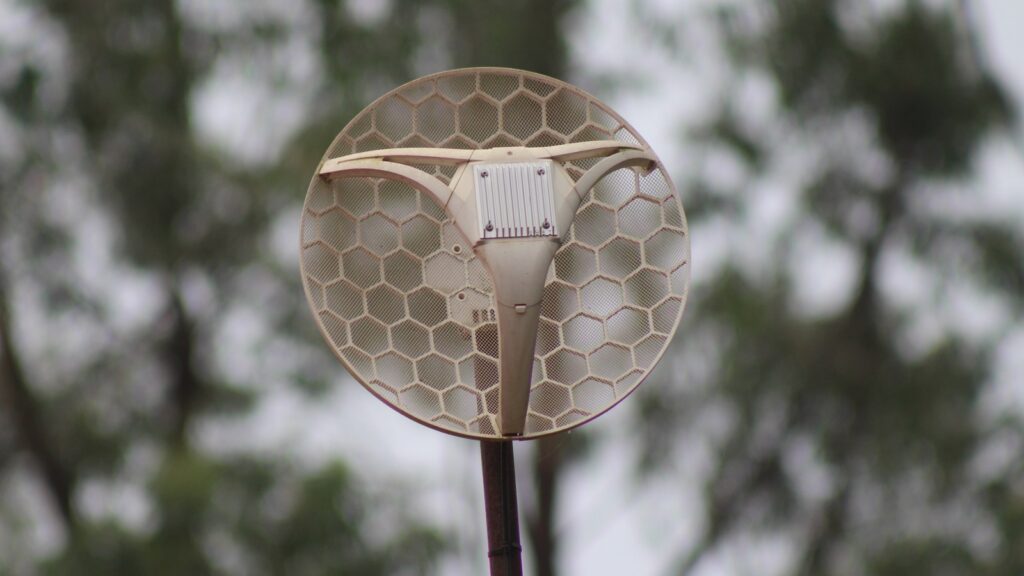
This step prevents unnecessary troubleshooting of your router or device settings. If the status dashboard indicates a temporary problem or downtime, the most effective course of action is to wait for the provider to resolve the issue. This systematic check should be performed early in the process to save time and effort. Distinguishing between a local Wi-Fi connection issue and a broader internet service outage is a key skill in effective troubleshooting.
- Consult the Google Workspace Status Dashboard for real-time service updates.
- Check for local outages reported by your specific Internet Service Provider (ISP).
- Distinguish between 'No Wi-Fi' (local) and 'No Internet' (service provider) indicators.
- Monitor community forums for reports of similar issues in your geographic area.
Addressing Security and Privacy Configurations
Security settings can sometimes act as a barrier to successful network connections. Microsoft includes 'Security & Privacy' as a core category for troubleshooting, noting that features like BitLocker or advanced firewall settings can impact how a device interacts with a network. Ensuring that your security credentials are correct and that your recovery keys are backed up is vital when making changes to network security protocols.
Google also emphasizes 'User Security' and account access. If a device requires a sign-in to access the network (such as in a managed environment or a public hotspot), ensure that your account is in good standing and that you are not being blocked by security filters. Misconfigured security settings are a common reason for 'connected but no internet' scenarios. Always review your 'Privacy Choices' to ensure that necessary network discovery features are not being inadvertently restricted.
- Back up your BitLocker recovery key before altering deep system security settings.
- Check if a firewall or security suite is blocking the network adapter.
- Verify that your account permissions allow for network configuration changes.
- Ensure that 'Privacy Choices' in your OS are not restricting necessary network discovery.
Environmental Factors and Device Longevity
The physical environment plays a significant role in wireless performance. Apple’s philosophy on 'Designing for Longevity' involves balancing durability with repairability. Over time, internal components can degrade, especially if the device is subjected to environmental stress. Ensuring that your Wi-Fi router and receiving devices are placed in areas with minimal interference and adequate ventilation can extend their operational life.
Interference from other electronics or physical barriers like thick walls can degrade signal quality. If connectivity is only poor in specific locations, the issue is likely environmental rather than a software or hardware failure. Moving the device or the router can often resolve these 'dead zones' without the need for technical repairs. Always consider the age of your hardware and whether it supports modern Wi-Fi standards, as older equipment may struggle with current network demands.
- Place routers in central, elevated locations to maximize signal spread.
- Keep devices away from other electronics that might cause signal interference.
- Ensure devices have proper ventilation to prevent overheating of network chips.
- Consider the age of the hardware and whether it supports modern Wi-Fi standards.
Official Repair and Support Pathways
If systematic troubleshooting does not resolve the issue, it may be time to seek professional assistance. Apple recommends using Apple-certified repairs performed by trusted experts who use genuine parts. This ensures that the repair does not compromise the safety or privacy of the device. Similarly, Microsoft offers resources through 'Microsoft Store Support' and 'Community Forums' where users can find solutions to persistent hardware problems.
Using official support channels protects you from counterfeit parts and scams. Both Apple and Microsoft warn against gift card scams and non-genuine replacement parts, which can lead to further device failure. When a hardware fault is suspected, always verify the service provider's credentials through the official manufacturer's website. Never trust unsolicited contact or third-party repair shops that do not guarantee the use of genuine parts.
- Locate an Apple Authorized Service Provider for certified hardware repairs.
- Use the 'Contact Microsoft' or 'Microsoft Tech Community' for expert advice.
- Check for active Service Programs or recalls related to your specific device model.
- Avoid third-party repair shops that do not guarantee the use of genuine parts.
Avoiding Scams and Counterfeit Solutions
During the troubleshooting process, users may encounter fraudulent offers for technical support. Microsoft and Apple both provide explicit warnings about support scams. These often involve unsolicited contact or requests for payment via gift cards. Official support will never ask for sensitive financial information or payment in non-standard forms to fix a Wi-Fi connection.
Furthermore, be cautious of 'free' software downloads that claim to fix internet speeds or drivers. Only download drivers and diagnostic tools from official sources like the Microsoft Download Center or the Google Play Store. Using unverified software can introduce security risks and further destabilize your network connection. Always report suspected support scams directly to the manufacturer via their official reporting tools to help protect other users.
- Never provide payment via gift cards for technical support services.
- Only download drivers from official manufacturer websites or built-in update tools.
- Be skeptical of unsolicited pop-ups claiming your device has a network virus.
- Report support scams directly to the manufacturer via their official reporting tools.
Key takeaways
- Always start by checking the Google Workspace Status Dashboard to rule out service-side outages.
- Use genuine power adapters and batteries to ensure stable power for wireless components.
- Keep the operating system and network drivers updated via official channels like Windows Update.
- Utilize native diagnostic tools such as the PC Health Check app for initial system assessments.
- Seek repairs only through authorized service providers to ensure the use of genuine parts and maintain device longevity.
Common mistakes to avoid
- Attempting complex software fixes before checking for a general service outage on a status dashboard.
- Using non-genuine power adapters which can cause electrical interference with Wi-Fi radios.
- Ignoring system requirements and pending updates that contain critical driver fixes.
- Falling for technical support scams that request payment via gift cards or unverified software downloads.
Useful TechAI links
FAQ
How do I know if the Wi-Fi issue is my device or the service provider?
Check the Google Workspace Status Dashboard or your ISP's official status page. If these services report downtime, the issue is external and you must wait for a resolution. If they are 'green' or active, the problem is likely with your local hardware or configuration.
Why does the manufacturer recommend only genuine parts for repairs?
Genuine parts are designed to meet specific safety and performance standards. Non-genuine parts, such as batteries or displays, can lead to safety issues, compromised visual quality, or failure to work correctly with the device's internal logic, including network components.
What should I do if Windows Update fails to fix my network driver?
Consult the 'Windows Update: FAQ' or the 'Troubleshoot & Repair' section in Windows Help. You may need to manually download the driver from the Microsoft Download Center or use the PC Health Check app to ensure your hardware still meets system requirements.
Can a low battery affect my Wi-Fi connection?
Yes, power management settings often throttle hardware performance to save energy when a battery is low or failing. Ensuring your battery is healthy and using a genuine power adapter helps maintain the consistent voltage required for a stable wireless signal.