
Low disk space can make Windows harder to update and can slow normal work, but aggressive “cleanup” is not the answer. The safest approach is to identify what is actually using space, remove disposable files first, and protect anything you cannot replace.
Start with Windows storage settings
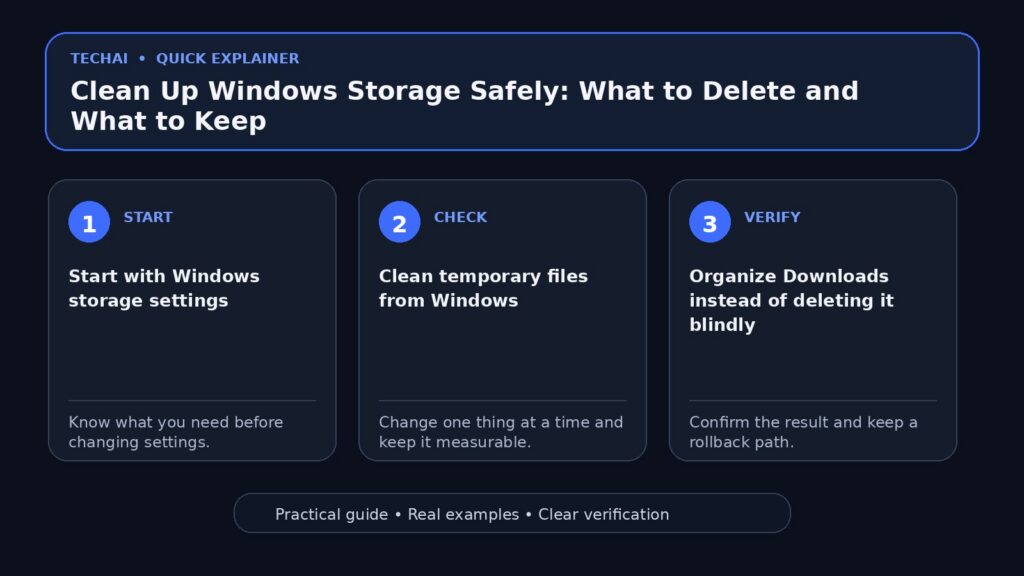
Open the built-in Storage settings to see how space is divided between apps, temporary files, documents, media, and other categories. This gives you a map before you delete anything.

Clean temporary files from Windows
Use Windows’ own temporary-file controls before third-party cleaners. Review the selected categories instead of accepting every checkbox automatically, especially Downloads if you keep important files there.
Organize Downloads instead of deleting it blindly
The Downloads folder often contains installers, archives, documents, and files you still need. Sort by size and date, move important files to a permanent location, and delete only what you recognize.
Review installed applications
Sort installed apps by size and remove software you no longer use. Do not uninstall drivers, hardware utilities, security components, or unfamiliar system software just to gain a small amount of space.
Use a tool that shows large files
A disk-usage viewer can help locate unusually large folders, but treat it as a map rather than a delete button. Identify the purpose of a folder before removing it.
Review videos, photos, and backups
Personal media can consume much more space than system files. Move archives and old backups to another drive or verified cloud storage when appropriate, then confirm the copy before deleting the original.
What about Windows.old?
After a major Windows upgrade, Windows.old may contain the previous installation for a limited rollback period. If you are sure the current installation is working and you no longer need rollback, remove it through Windows cleanup tools rather than manually deleting random folders.
Do not use unknown delete commands from the internet
A command that frees space on someone else’s computer may remove logs, caches, recovery data, or system files you still need. Understand what a command targets before running it.
Enable Storage Sense when it fits your workflow
Storage Sense can automate some cleanup tasks. Review its schedule and what it is allowed to remove so automation does not conflict with how you use Downloads or cloud files.
How much free space do you need?
There is no single number for every computer. The practical goal is to keep enough room for Windows updates, temporary work files, browser caches, and the applications you use. If the drive repeatedly returns to nearly full after normal cleanup, capacity may be the real problem.
If you have a second drive
Move large personal libraries, project archives, and media to the secondary drive when appropriate. Keep backups separate from the only copy of the data.
A safe cleanup order
- Back up irreplaceable files.
- Check Storage settings.
- Remove safe temporary files.
- Review Downloads.
- Uninstall software you recognize and no longer need.
- Move large personal files or archives.
- Recheck free space and system behavior.
When do you need a larger drive?
If your normal applications and active files legitimately use most of the disk, repeated cleanup only buys temporary relief. Upgrading storage or moving large libraries may be more sensible than constantly deleting files.
Before any large deletion
Confirm the path, understand what created the data, and make sure important files exist somewhere else. A few minutes of verification are cheaper than trying to recover deleted work.
How do you know the cleanup worked?
Check available space, run Windows Update if it was previously blocked, open your important apps, and confirm that expected files still exist. Successful cleanup is not just a larger free-space number; the computer should still work normally.
A low-risk cleanup routine
When storage is tight, start with items that are easy to identify and recover. Do not begin with system folders or aggressive third-party cleaners.
- Check Windows Storage settings to see which category is actually large.
- Review temporary files using Windows’ own cleanup options.
- Sort Downloads by size and move anything you need before deleting.
- Uninstall applications you recognize and no longer use.
- Move personal archives or large media to a verified backup or second drive.
After cleanup, restart and confirm that normal apps, updates, and important files still behave as expected before deleting additional data.
Conclusion
Use Windows’ built-in tools first, focus on files you understand, and protect irreplaceable data before deleting large amounts. If storage pressure returns immediately, solve the capacity problem instead of making cleanup increasingly aggressive.