
A backup is useful only if it contains the data you care about and can actually be restored. Before replacing, repairing, resetting, or losing a phone, you should know what is protected, where the copy is stored, and how you would recover it.
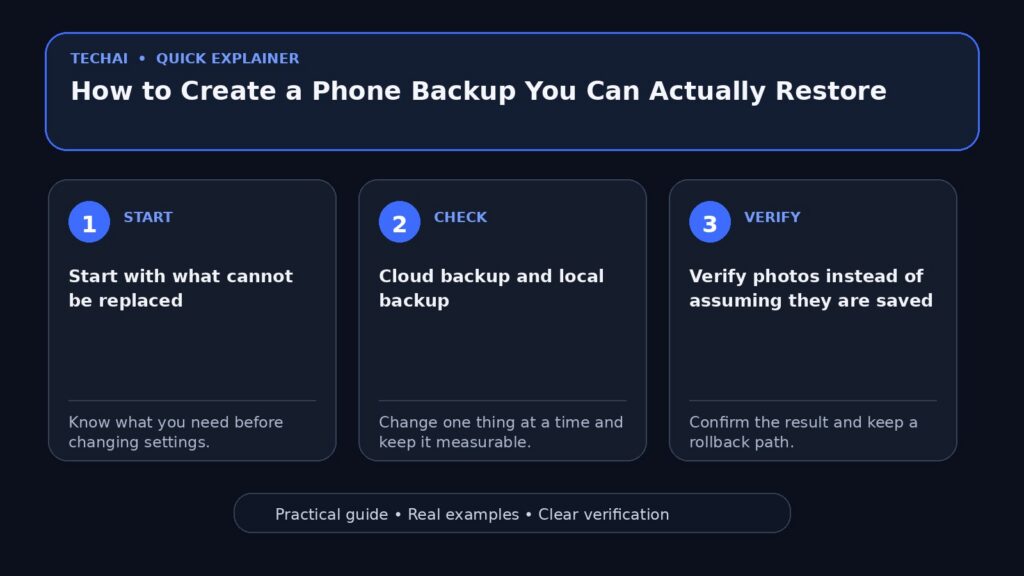
Start with what cannot be replaced
List the data that would be painful or impossible to recreate: photos and videos, contacts, notes, documents, authentication information, chat history, and files stored inside particular apps. This list determines what your backup plan must cover.

Cloud backup and local backup
Cloud backup is convenient because it is separate from the phone and can restore many settings automatically. A local backup gives you another copy under your control. Using both can reduce the risk of relying on one provider or one device.
Verify photos instead of assuming they are saved
Open the photo service you use and confirm that recent photos appear there. Check whether videos are included and whether synchronization is paused because of storage limits, battery settings, or network restrictions.
What about contacts?
Contacts may be stored in a Google account, Apple account, another provider, or only on the device. Check where new contacts are being saved and confirm that they appear when you sign in to the account from another device or browser.
Messaging apps
Chat applications use different backup systems. Some synchronize automatically, while others require a separate cloud backup or transfer process. Review the app’s own backup settings before resetting or changing phones.
Two-factor authentication
Authenticator apps and recovery codes deserve special attention. Confirm how the authenticator transfers accounts and store recovery codes somewhere secure and separate from the phone.
Files stored inside apps
Downloads, voice recordings, drawing projects, document scans, or app-specific databases may not be included in the main phone backup. Export important files if the app does not clearly support restore.
Create a local copy on a computer when useful
A local backup can protect against a cloud-account problem or a failed synchronization. Store it on a computer or external drive with enough free space, and protect sensitive backups appropriately.
How do you test a backup?
Do not wait for an emergency to discover that the backup is incomplete. Confirm the most recent backup date, open cloud-synced files from another device, and verify that you know the account credentials and recovery method required to restore.

Before resetting the phone
- Confirm photos and contacts are synchronized.
- Check important chat backups.
- Export app-specific files.
- Verify authenticator transfer or recovery codes.
- Make sure you can sign in to the main Apple or Google account.
Do not rely on a memory card alone
A card can fail, be lost with the phone, or contain only some files. It can be one copy, but it should not be the only copy of irreplaceable data.
Use a simple schedule
Automatic daily or weekly synchronization is easier to maintain than a backup routine you remember only before a device upgrade. Review the system occasionally to make sure it is still running.
Do not forget account recovery
A backup is difficult to use if you cannot access the account that holds it. Keep recovery email addresses and phone numbers current and store important recovery codes safely.
Test the lost-phone scenario
Ask yourself: if this phone disappeared today, could I sign in from a new device, recover my most important data, and approve two-factor authentication? Any “no” answer reveals a gap worth fixing.
A simplified 3-2-1 idea
For your most important files, keep more than one copy, use more than one storage location, and keep at least one copy away from the phone itself. You do not need a complicated enterprise backup system to apply the basic principle.
Before buying a new phone or sending one for repair
Create and verify the backup first. Do not assume a repair shop or transfer tool will preserve everything. If the phone contains sensitive information, follow the manufacturer’s official preparation instructions.
Run a restore test before you need it
A backup is not proven until you can retrieve something from it. You do not need to erase your phone to test the basics.
- Open the cloud service and download one recent photo and one older file.
- Verify that contacts appear in the account you expect.
- Check whether important messaging apps have their own backup setting.
- Confirm that recovery codes or authenticator migration instructions are stored safely.
- Make sure you know the account password needed to restore the device.
Repeat this check before a repair, reset, upgrade, or long trip. Finding a missing backup while the old phone still works is much easier than discovering it afterward.
Conclusion
A reliable phone backup is a verified recovery plan, not just a switch labeled “backup.” Know what matters, keep more than one copy where appropriate, and test access before you need it.