A password manager makes it practical to use a different strong password for every account. The goal is not to find a magical app that removes all risk; it is to reduce password reuse and make secure account habits easier to maintain.
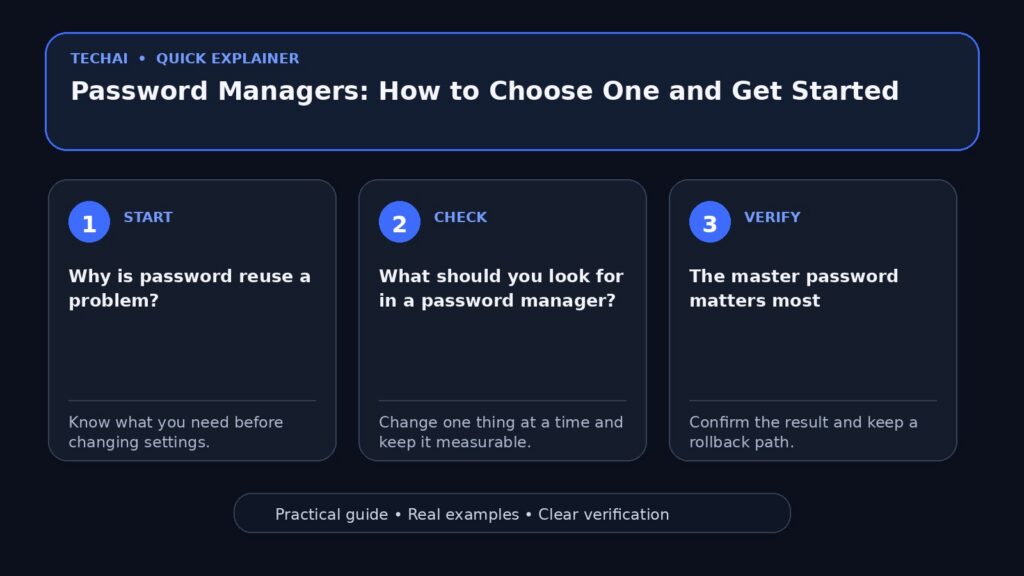
Why is password reuse a problem?
If one website is breached and you reused the same password elsewhere, attackers can try that password on your email, shopping, social, and other accounts. Unique passwords limit the damage from one compromised service.

What should you look for in a password manager?
Look for clear security documentation, support for the devices you use, reliable synchronization or backup, strong account recovery guidance, and a company with a transparent update history. Make sure you can export your data in a usable format if you decide to leave later.
The master password matters most
Your master password protects access to the vault. Use a long, unique password or passphrase that you do not reuse anywhere else. Store a secure recovery copy if losing it would permanently lock you out.
Enable two-factor authentication
If the password-manager account supports two-factor authentication, enable it and protect the recovery codes. Do not store the only copy of the recovery information somewhere that depends on the same locked account.
Use the generator instead of inventing passwords
Humans tend to create predictable patterns. A password generator can create long random passwords for sites that do not support passkeys or another stronger sign-in method.
What about the browser’s built-in manager?
Browser password managers can be useful and are often far better than reusing passwords. Compare them based on your device ecosystem, export options, sharing needs, account security, and whether you want credentials available outside that browser.
How do you migrate safely?
Export from the old manager only when needed, import into the new manager, verify the records, and then securely remove the temporary export file. Plain-text password exports are sensitive and should not be left in Downloads or cloud folders.
Do not approve every autofill prompt without thinking
Autofill is convenient, but still check the website you are on. A password manager can reduce phishing risk by refusing to fill credentials on the wrong domain, but you should not treat autofill as proof that a page is legitimate.
What else can you store?
Depending on the product, a vault may hold secure notes, software keys, identity details, or payment information. Store only what you actually need and understand how that data is protected and synchronized.

Review old accounts
Migration is a useful time to remove credentials for services you no longer use and to close old accounts when possible. Fewer forgotten accounts mean fewer places where stale credentials can become a problem.
A simple migration plan
- Choose the manager and secure the account.
- Enable two-factor authentication.
- Import existing credentials carefully.
- Change reused passwords, starting with email and financial accounts.
- Use the generator for new passwords.
- Store recovery information separately and securely.
Is a password manager perfect?
No. Software can contain bugs, accounts can be targeted, and users can still approve phishing prompts. The advantage is that a well-managed vault allows unique credentials and better habits at a scale most people cannot manage manually.
Start with the most important accounts
If changing everything feels overwhelming, begin with your main email, Apple or Google account, banking and payment services, and accounts that can reset other passwords. Then work through the rest over time.
What if you stop trusting your current manager?
Review the provider’s official information, export your vault through the supported process, move to another manager, and rotate especially sensitive credentials if the situation warrants it. Avoid panic-driven migration through unofficial tools.
Cloud-based or local?
Cloud synchronization is convenient across devices. A local-only approach can give you more direct control but requires you to manage backups and synchronization. The right choice depends on your technical comfort, devices, and recovery plan.
What should stay outside the vault?
Keep at least one safe recovery path that does not depend entirely on opening the vault itself, such as securely stored recovery codes or documented emergency access steps.
A safe first-week migration plan
Do not move every account in one session. Start with your email, banking, cloud storage, and the accounts that can reset other passwords. Generate a unique password for each one and enable two-factor authentication where it is available.
- Day 1: secure your primary email and password-manager account.
- Days 2–3: move financial, cloud, and work accounts.
- Days 4–7: migrate lower-priority accounts as you sign in to them.
- Afterward: review duplicates, old logins, and recovery information.
This staged approach makes mistakes easier to spot and avoids locking yourself out of many services at once.
Conclusion
The biggest practical improvement is simple: stop reusing passwords. A password manager, a unique master password, two-factor authentication, and a tested recovery plan make that goal much easier to maintain.