
Modern web browsers are complex software environments that balance security, media rendering, and background synchronization. When a browser begins to feel sluggish, it is often the result of accumulated temporary data, conflicting extensions, or resource-heavy background processes that interfere with the browser's ability to render content efficiently.
This guide provides a structured, non-hyped approach to diagnosing and fixing browser performance issues. By following these steps—ranging from basic cache management to advanced settings resets—you can restore your browser to its optimal state without resorting to drastic measures like full system reinstalls.
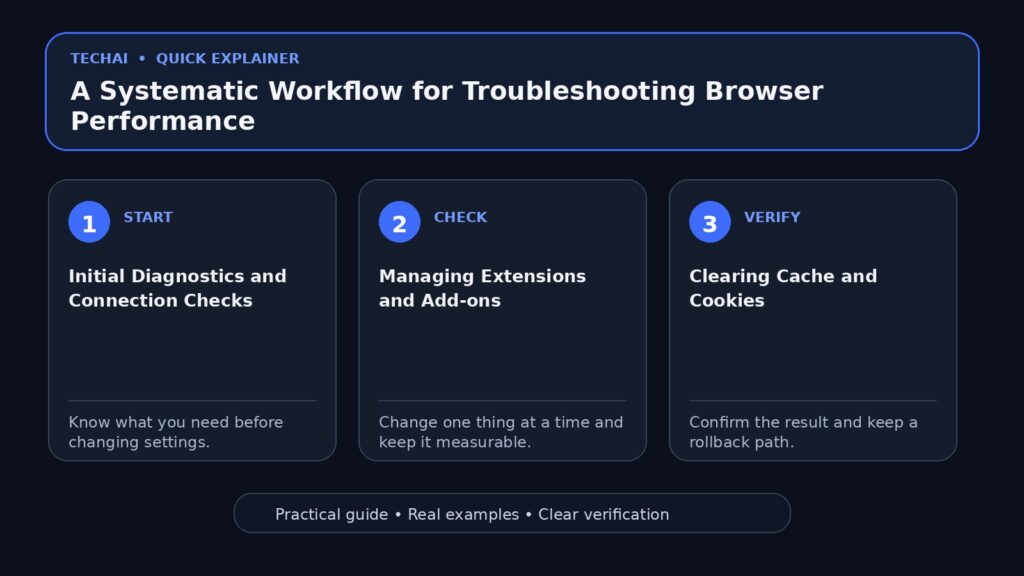
Initial Diagnostics and Connection Checks
Before modifying browser settings, it is essential to rule out external factors. Browser performance is frequently impacted by network instability or site-specific issues rather than the browser software itself. If a site fails to load or runs slowly, verify your internet connection first to ensure that the bottleneck is not your local network or ISP.

Additionally, ensure that your browser is not being blocked by security software or restrictive network configurations. If you receive errors regarding JavaScript or site loading, try accessing the site in a different browser to determine if the problem is isolated to your primary application. This helps distinguish between a global browser failure and a specific site incompatibility.
Check your browser settings to ensure that JavaScript is enabled, as many modern websites require it to function correctly. If JavaScript is disabled, a required part of the site may fail to load, leading to the appearance of a slow or broken browser experience. Always verify these basic configurations before moving to more complex troubleshooting steps.
- Verify your active internet connection.
- Test the problematic site in a different browser.
- Check for local network or VPN interference.
- Ensure JavaScript is enabled in your browser settings.
Managing Extensions and Add-ons
Browser extensions are a common source of performance degradation. While useful, poorly optimized or outdated extensions can consume significant memory and CPU cycles. They may also conflict with site scripts, leading to slow page loads or unresponsive interfaces. If you have a large number of extensions installed, they may be competing for system resources.
To troubleshoot, disable all extensions and re-enable them one by one to identify the culprit. If the browser performance improves significantly after disabling extensions, you have likely found the source of the bottleneck. It is also recommended to remove any unused or outdated add-ons that you no longer require, as these can still impact performance even when inactive.
Check for extension updates regularly, as developers often release patches to improve efficiency and fix compatibility issues. If a specific extension is known to be resource-heavy, consider finding a lighter alternative or disabling it during high-intensity tasks to keep your browser running smoothly.
- Disable all extensions temporarily.
- Identify resource-heavy extensions.
- Remove unused or outdated add-ons.
- Check for extension updates.
Clearing Cache and Cookies
Browsers store temporary data like images, scripts, and cookies to speed up future visits. Over time, this cache can become corrupted or bloated, causing the browser to struggle when loading new content. Clearing this data is a standard maintenance step that forces the browser to fetch fresh, uncorrupted data from the web.
When clearing your cache, be aware that you may be signed out of websites and some site preferences may be reset. This is a necessary trade-off to ensure that the browser is fetching fresh, uncorrupted data from the web. You can typically choose to clear specific time ranges or specific types of data, such as cookies or cached images, depending on your needs.
After clearing your cache and cookies, it is often helpful to restart the browser. This ensures that all temporary processes are fully terminated and that the browser starts with a clean slate. If performance issues persist, you may also want to review your site data settings to see if specific sites are storing excessive amounts of local data.
- Clear cached images and files.
- Delete site cookies to resolve session issues.
- Review stored site data settings.
- Restart the browser after clearing data.
Managing Tabs and Background Processes
Modern browsers often treat each tab as a separate process. Having dozens of tabs open simultaneously can exhaust your computer's RAM, leading to system-wide slowdowns. Using built-in tab management features can help mitigate this by reducing the number of active processes running in the background.

Many browsers now include performance modes or memory-saving features that automatically suspend inactive tabs. Utilizing these tools allows you to keep your workflow intact while ensuring that your active tab receives the necessary system resources. You can also group related tabs to keep your workspace organized and reduce visual clutter.
If you suspect a specific tab is causing a slowdown, use the browser's built-in task manager. This tool allows you to see exactly how much memory and CPU each tab or extension is consuming. By identifying and closing the most resource-intensive tabs, you can immediately regain performance without needing to restart the entire browser.
- Close unused tabs to free up RAM.
- Use built-in memory-saving modes.
- Group related tabs for better organization.
- Monitor resource usage via the browser's task manager.
Resetting Browser Settings
If standard troubleshooting fails, resetting your browser to its default state is an effective way to eliminate misconfigurations. This process reverts settings like your homepage, new tab page, and search engine to their original defaults. It is a powerful tool for resolving persistent issues that do not respond to cache clearing or extension management.
A reset will also disable all extensions and clear temporary data like cookies. It does not typically delete your bookmarks, history, or saved passwords, but it is always a good practice to ensure your data is synced to your account before proceeding. This ensures that you can easily restore your preferences after the reset is complete.
After performing a reset, re-enable your necessary extensions one by one. This allows you to verify that none of your previous configurations were causing the performance issues. Check for updated browser versions post-reset to ensure you are running the most stable and secure version of the software available.
- Reset settings to default values.
- Re-verify search engine preferences.
- Re-enable necessary extensions individually.
- Check for updated browser versions post-reset.
Advanced Security and Privacy Settings
Browser performance can sometimes be affected by security settings, such as tracking prevention or ad blockers. While these features are essential for privacy, they can occasionally interfere with the loading of specific site elements. If you notice a site is slow or failing to load, try temporarily adjusting these settings to see if they are the cause.
Ensure that your browser's safety and security features are correctly configured. For example, check if a site's connection is secure or if there are warnings about unsafe sites. Sometimes, the browser may be working hard to block malicious content, which can impact the loading speed of complex pages.
If you are using a third-party security tool or ad blocker, consider disabling it for a specific site to see if it improves performance. Always remember to re-enable these protections once you have finished your troubleshooting to maintain your online safety and privacy.
- Adjust tracking prevention levels.
- Test site performance with ad blockers disabled.
- Check for site connection security warnings.
- Review privacy and security settings.
Software Updates and Compatibility
Keeping your browser updated is one of the most effective ways to ensure optimal performance. Developers frequently release updates that include performance patches, security fixes, and compatibility improvements. If you are running an outdated version of your browser, you may be missing out on critical optimizations that could resolve your performance issues.
Check the official support pages for your browser to see if there are known issues with your current version. If you are part of a beta program, consider switching to the stable release, as beta versions may contain experimental features that are not yet fully optimized for daily use.
If you continue to experience issues, consider checking the browser's help community or forums. Other users may have encountered similar problems and found solutions that are not documented in standard help articles. Sharing your experience can also help developers identify and fix bugs in future updates.
- Check for browser software updates.
- Switch from beta to stable versions.
- Consult official help communities.
- Review known issues on support pages.
Key takeaways
- Always rule out network issues before modifying browser settings.
- Extensions are the most frequent cause of browser performance degradation.
- Clearing the cache resolves most corrupted data issues.
- Managing open tabs is critical for memory-constrained systems.
- Resetting to default settings is a safe final step for persistent issues.
Common mistakes to avoid
- Clearing all browser data without checking for network issues first.
- Installing too many extensions that perform similar functions.
- Ignoring browser updates that contain performance patches.
- Assuming a slow browser is always a sign of a virus or malware.
Useful TechAI links
FAQ
Does clearing my history delete my saved passwords?
Generally, no. Most browsers separate browsing history and cache from your saved passwords and autofill data. However, always check the specific checkboxes in your browser's 'Clear Browsing Data' menu before confirming.
Why does my browser run slowly only on one specific website?
If other sites load quickly, the issue is likely with that specific website's code or your interaction with it. Try disabling ad blockers or extensions for that specific site to see if they are interfering with the site's scripts.