
Browser extensions are powerful tools designed to enhance your web experience by adding specialized features such as content blockers, password managers, and productivity utilities. However, as users accumulate these add-ons over time, the browser's core performance can begin to suffer. Excessive extensions consume significant system memory and processing power, often leading to slow page loads, unresponsive tabs, and frequent browser crashes. Furthermore, outdated or poorly maintained extensions can introduce security vulnerabilities, potentially exposing your browsing data or allowing unauthorized access to your system resources.
Performing a systematic audit of your browser extensions is essential for maintaining a fast, stable, and secure online environment. This process involves more than just deleting unused icons; it requires a deep dive into site permissions, script management, and troubleshooting techniques to resolve common errors like the 'Client Challenge' or JavaScript failures. By following a structured cleanup routine, you can ensure that your browser remains optimized, your privacy is protected through features like tracking prevention and Safe Browsing, and your essential web applications function without interference from conflicting background scripts.
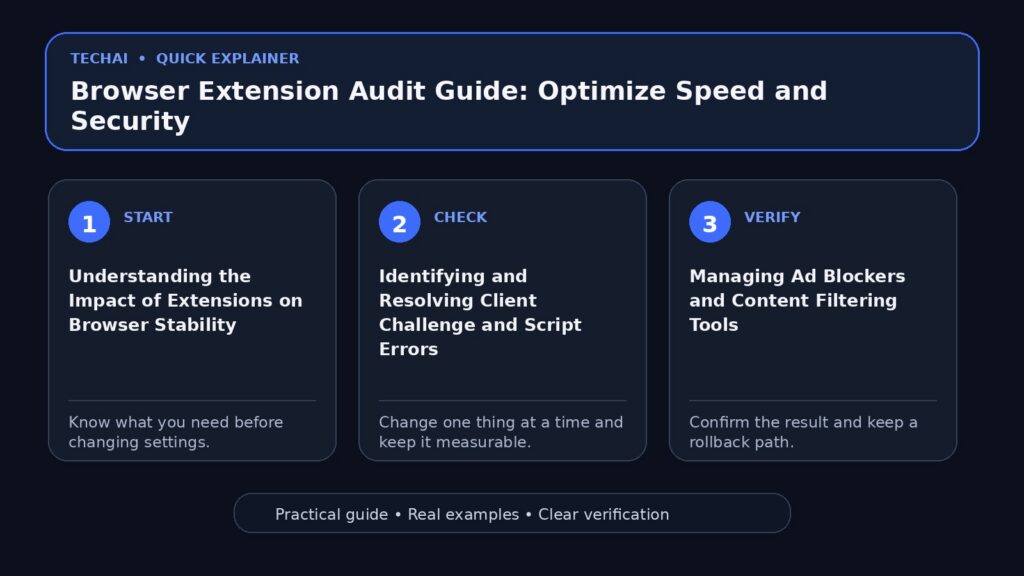
Understanding the Impact of Extensions on Browser Stability
Browser extensions operate by injecting code into web pages or intercepting network requests to modify how content is displayed and processed. While this allows for high levels of customization, it also creates a complex environment where multiple scripts compete for resources. When too many extensions are active, they can conflict with one another or with the native code of the websites you visit. This often results in performance degradation, where the browser takes longer to render pages or becomes sluggish when switching between multiple open tabs. In some cases, these conflicts can even prevent the browser from updating correctly or cause it to fail during startup.

Beyond performance, the stability of your browser is directly linked to the quality of the extensions you have installed. Extensions that are not regularly updated by their developers may become incompatible with newer versions of the browser engine, leading to unexpected errors. These issues are frequently manifested as broken page layouts, missing interactive elements, or the inability to use specific browser features like printing or file downloads. Recognizing that a decline in browser stability is often caused by the cumulative effect of background extensions is the first step toward restoring a clean and efficient browsing experience.
- Extensions consume background memory and CPU cycles even when not in active use.
- Conflicting scripts can lead to high resource usage and browser unresponsiveness.
- Outdated add-ons may interfere with core browser updates and security patches.
- Excessive background processes can significantly drain battery life on mobile devices.
Identifying and Resolving Client Challenge and Script Errors
A common symptom of extension interference is the 'Client Challenge' error, which typically indicates that a required part of a website could not load. This error often appears when JavaScript is disabled or when an extension prevents a site's security scripts from executing properly. Websites use these challenges to verify that a connection is secure and that the visitor is a human user rather than a bot. If an extension, such as an aggressive script blocker or a privacy tool, intercepts these verification scripts, the site may refuse to load entirely, leaving the user with a message to check their connection or disable ad blockers.
To troubleshoot these issues, you must determine if the problem is localized to your browser configuration or if it is a broader network issue. A practical first step is to attempt to load the problematic page in 'Guest Mode' or an 'Incognito' window. These modes typically run without most extensions active, providing a clean environment to test site functionality. If the page loads correctly in Guest Mode, it is a clear indication that one of your installed extensions is the culprit. You can then proceed to re-enable your extensions one by one to pinpoint exactly which add-on is triggering the script failure or the Client Challenge warning.
- Client Challenge errors often stem from blocked JavaScript or security scripts.
- Use Guest Mode to verify if an issue is caused by an extension or the website.
- Check if your browser settings have inadvertently disabled JavaScript globally.
- Monitor for 'connection and loading errors' that persist across different websites.
Managing Ad Blockers and Content Filtering Tools
Ad blockers and content filters are among the most popular types of extensions, but they are also the most frequent causes of website breakage. These tools work by identifying and blocking specific network requests associated with advertising servers and tracking scripts. However, many modern websites integrate their core functionality—such as login portals, video players, and interactive forms—with the same scripts that ad blockers might target. When these essential components are blocked, the website may appear broken, or you may be prompted with a message stating that a required part of the site couldn't load.
Instead of completely uninstalling your ad blocker, you can manage these conflicts by using site-specific permissions. Most content filters allow you to 'pause' protection for a specific domain or add a website to a 'whitelist' or 'allowlist.' This ensures that the site can execute its necessary scripts while you maintain protection on other parts of the web. It is also important to avoid running multiple ad blockers simultaneously. Having more than one filtering tool active can lead to redundant processing and rule conflicts, which further increases the likelihood of page rendering errors and slows down your overall browsing speed.
- Temporarily pause ad blockers to resolve 'JavaScript disabled' warnings.
- Add trusted websites to your extension's allowlist to restore functionality.
- Avoid concurrent use of multiple ad blockers to prevent rule conflicts.
- Check for built-in browser ad-blocking settings that may overlap with extensions.
Auditing Site Permissions and Privacy Settings
Every extension you install may request various permissions to function, such as the ability to read your browsing history, access your location, or use your camera and microphone. Over time, you may find that you have granted extensive permissions to add-ons that no longer require them. Regularly auditing these site permissions is a critical component of browser maintenance. You should review which extensions have access to sensitive data and hardware, such as MIDI devices, USB connections, or your precise location. If an extension's requested permissions seem excessive for its stated purpose, it may be a sign of a privacy risk.
In addition to extension permissions, you should manage the permissions granted to individual websites. Browsers like Chrome and Edge allow you to control whether sites can show notifications, track your location, or access your microphone. By navigating to the 'Site Settings' or 'Privacy and Security' section of your browser, you can reset these permissions to their default states. This not only enhances your privacy but also prevents unwanted background processes from running. Utilizing features like 'Safe Browsing' and 'Tracking Prevention' provides an additional layer of security that works alongside your extensions to protect your data from unsafe sites and unauthorized tracking.
- Review permissions for location, camera, microphone, and MIDI devices.
- Disable notifications for websites that send frequent or unwanted alerts.
- Use 'Safe Browsing' features to receive warnings about potentially unsafe sites.
- Audit 'on-device site data' to manage how much information is stored locally.
Removing Unwanted Software and Rogue Extensions
Unwanted software and rogue extensions can find their way onto your system through bundled installers or deceptive advertisements. These programs often manifest as 'hijackers' that change your default search engine, modify your home page, or inject unauthorized ads into the websites you visit. If you notice that your browser's startup page has changed without your consent, or if you are frequently redirected to unfamiliar search engines, it is likely that an unwanted extension or software package has been installed. These rogue elements not only disrupt your browsing experience but can also track your activity and compromise your security.

To combat this, you should regularly check your list of installed extensions and remove anything that you do not recognize or no longer use. Most browsers provide a dedicated menu for managing extensions where you can easily toggle them off or remove them entirely. Additionally, use the browser's built-in tools to 'Remove unwanted software' or 'Check for harmful software.' These features are designed to scan your browser environment for known threats and help you restore your settings to a clean state. Keeping your browser updated to the latest version is also vital, as updates often include definitions for new types of unwanted software and security patches to prevent their installation.
- Watch for unauthorized changes to your home page or default search engine.
- Immediately remove any extensions that you do not remember installing.
- Use built-in browser tools to scan for and remove unwanted software ads.
- Report suspicious extensions to the browser's official web store for review.
Clearing Browsing Data, Cache, and Cookies
Even after removing a problematic extension, you may still encounter errors due to corrupted cached data or stale cookies. Browsers store images, scripts, and other web assets in a local cache to speed up the loading of frequently visited sites. However, if an extension has modified these files or if the cached data becomes outdated, it can cause persistent rendering issues and connection errors. Similarly, cookies—which store session information and site preferences—can become corrupted, leading to login failures or 'Client Challenge' loops where the site fails to recognize your authenticated state.
Clearing your browsing data is a standard troubleshooting step that can resolve many of these issues. When you clear your cache and cookies, you are essentially forcing the browser to download fresh copies of all site assets from the server. This process removes any lingering effects of a faulty extension and ensures that you are interacting with the most current version of a website. You can typically choose a time range for clearing data, such as 'Last hour' or 'All time.' For a thorough cleanup, selecting 'All time' for cached images and files is recommended, though you should be aware that this will require you to sign back into most websites.
- Clear cached images and files to resolve persistent page rendering glitches.
- Delete cookies to fix session-related errors and login authentication loops.
- Use the 'Clear browsing data' menu to select specific types of data to remove.
- Re-verify site performance after a cache clear to ensure the issue is resolved.
Resetting Browser Settings to Factory Defaults
When individual troubleshooting steps fail to resolve deep-seated configuration issues or persistent extension conflicts, a full reset of the browser settings is the most effective solution. Resetting your browser reverts several key components to their original factory state, including your default search engine, home page, startup tabs, and new tab page preferences. Crucially, this action also disables all active extensions and resets temporary site permissions. This provides a 'clean slate' that eliminates any hidden configurations or script modifications that might be causing instability or loading errors.
One of the primary benefits of a settings reset is that it is non-destructive to your most important data. While it disables extensions and resets preferences, it does not delete your saved bookmarks, browsing history, or saved passwords. This allows you to restore your browser's performance without losing your personal information. After the reset is complete, you can re-enable your essential extensions one at a time. This controlled re-introduction of tools allows you to monitor the browser's behavior and identify if a specific extension was responsible for the previous issues, ensuring that you only keep the add-ons that are stable and necessary.
- Resetting disables all extensions but does not delete your saved bookmarks.
- Default search engines and startup pages are restored to factory settings.
- Pinned tabs and custom new tab page configurations will be cleared.
- Re-enable extensions individually to identify which one causes instability.
Managing Sync and Cross-Device Extension Consistency
Modern browsers allow you to sync your settings, bookmarks, passwords, and extensions across multiple devices, including desktops, tablets, and smartphones. While this feature provides a seamless experience, it also means that a problematic extension installed on one device can be automatically propagated to all your other synced devices. If you are experiencing issues on multiple computers, the cause may be a synced extension that is malfunctioning or incompatible with a specific operating system. Managing your sync settings is therefore a vital part of a comprehensive extension audit.
You can choose to customize what data is synced across your devices. If you find that certain extensions are only useful on your desktop but cause issues on your laptop, you can disable extension syncing while keeping bookmarks and passwords active. This level of control helps prevent the spread of 'extension bloat' and ensures that each device is optimized for its specific hardware and use case. Regularly reviewing your synced devices and signing out of those you no longer use also enhances your security, as it prevents unauthorized access to your synced passwords and browsing data from old or lost hardware.
- Syncing can propagate faulty extensions across all your connected devices.
- Customize sync settings to exclude extensions if they cause cross-platform issues.
- Review and manage the list of devices currently signed into your browser account.
- Ensure that passwords and bookmarks remain synced even if extensions are not.
Establishing a Long-Term Extension Maintenance Strategy
The best way to avoid browser performance issues is to prevent extension sprawl before it starts. This requires a proactive approach to managing your add-ons. Before installing a new extension, evaluate whether its functionality is already built into the browser. Many modern browsers now include native features for tasks that previously required extensions, such as reading modes, screenshot tools, and basic image editing. By relying on native features whenever possible, you reduce the number of third-party scripts running in the background and minimize the risk of conflicts.
Establish a routine, such as once every three months, to perform a full audit of your installed extensions. During this review, uninstall any add-ons that you haven't used in the last 30 days and check for updates for those you decide to keep. Only install extensions from official sources like the Chrome Web Store or Microsoft Edge Add-ons store, as these platforms perform security checks on the software they host. Finally, always keep your browser updated to the latest version. Browser updates often include critical security patches and performance improvements that ensure your extensions continue to run smoothly and safely.
- Conduct a full extension audit every few months to remove unused tools.
- Prioritize native browser features over third-party extensions when possible.
- Only download extensions from official, verified browser marketplaces.
- Keep your browser updated to the latest version for maximum compatibility.
Key takeaways
- Excessive or outdated extensions are a primary cause of browser slowness and script errors.
- The 'Client Challenge' error is often triggered by extensions that block essential site JavaScript.
- Testing websites in Guest Mode or Incognito helps isolate extension-related loading issues.
- Resetting browser settings disables all extensions without deleting bookmarks or passwords.
- Regularly auditing site permissions and clearing cache ensures a secure and fast experience.
Common mistakes to avoid
- Running multiple ad blockers at once, which leads to rule conflicts and broken websites.
- Assuming a website is 'down' without first testing it with all extensions disabled.
- Keeping unused extensions installed, which increases memory usage and security risks.
- Clearing only browsing history when trying to fix loading errors, rather than the cache.
Useful TechAI links
FAQ
Why do I see a 'Client Challenge' or 'JavaScript disabled' error on some sites?
These errors occur when a website's security or functional scripts are blocked from running. This is frequently caused by browser extensions like ad blockers or privacy tools that intercept necessary JavaScript files required for the site to load.
Will I lose my saved passwords if I reset my browser settings?
No, resetting your browser settings to default will not delete your saved passwords, bookmarks, or browsing history. It primarily reverts your startup preferences and disables extensions to provide a clean troubleshooting baseline.
How can I find out which specific extension is breaking a website?
The most effective method is to disable all extensions and then re-enable them one by one. Refresh the problematic website after enabling each extension; the one that causes the site to fail again is the culprit.
Is it safe to sync my extensions across all my different devices?
While syncing is convenient, it can spread a faulty or resource-heavy extension to all your devices. If you experience performance issues, consider disabling extension sync while keeping bookmarks and passwords active.