
A website redesign is a significant undertaking that often involves more than just a visual overhaul. From a technical SEO perspective, a redesign frequently triggers changes in URL structures, hosting environments, and content delivery methods. If these transitions are not managed according to search engine requirements, a site risks losing its established rankings and search traffic. The goal of a technical post-redesign audit is to ensure that Google can crawl, index, and understand the new site structure as efficiently as it did the old one.
This guide focuses on the critical technical fixes required after a redesign, based on official documentation for site moves and migrations. By addressing URL changes, implementing proper redirects, and managing canonicalization, you can minimize the negative impact on your search results. Whether you are moving from HTTP to HTTPS, changing domain names, or simply updating your URL paths, following a structured technical checklist is essential for a seamless transition for both users and search crawlers.
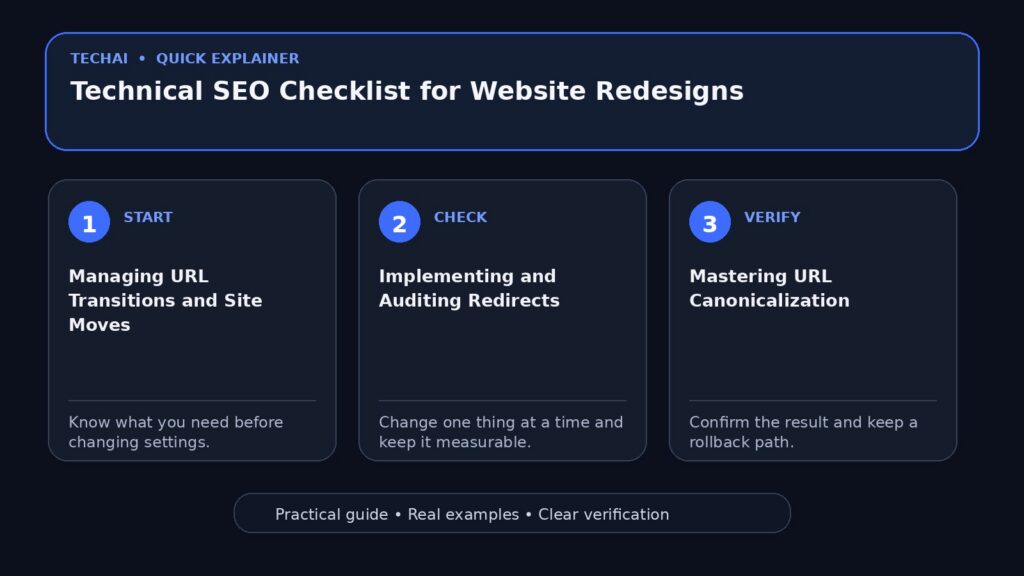
Managing URL Transitions and Site Moves
A site move occurs whenever you change the URLs of existing pages on your website. According to official documentation, this includes moving from HTTP to HTTPS, changing domain names (such as example.com to example.net), or merging multiple hostnames. It also encompasses changes to URL paths, such as moving from dynamic parameters like 'page.php?id=1' to cleaner, descriptive paths like '/widget'. Each of these changes requires careful management to ensure Google Search results are updated correctly.

When a site move involves URL changes, the primary objective is to minimize the negative impact on search rankings. This is achieved by clearly signaling to Google that content has moved to a new location. Without these signals, Googlebot may treat the new URLs as entirely new content, losing the historical context and authority associated with the original pages. This process is often referred to as a site migration with URL changes.
It is important to distinguish between a site move with URL changes and a move where URLs remain the same (such as changing hosting providers without altering the site structure). If your URLs are changing, you must follow specific protocols to help Google discover and index the new addresses. This includes updating internal links and ensuring that the new URL structure is logical and crawlable.
- Identify all URL changes: HTTP to HTTPS, domain changes, or path updates.
- Map every old URL to its corresponding new URL.
- Ensure the new URL structure follows Google's technical requirements.
- Verify that the new hosting environment is accessible to Googlebot.
Implementing and Auditing Redirects
Redirecting URLs is the technical practice of resolving an existing URL to a different one. This effectively tells visitors and Google Search that a page has a new location. Redirects are particularly useful when you have moved your site to a new domain or when people access your site through several different URLs. For example, if your home page can be reached via multiple paths, a redirect ensures that both users and search engines are directed to the single, preferred version.
For permanent moves, 301 redirects are the standard method for passing search signals from the old URL to the new one. During a redesign, it is common for pages to be deleted or consolidated. In these cases, a redirect should point the user to the most relevant new page. If a direct equivalent does not exist, redirecting to a parent category or the homepage is a common fallback, though direct mapping is always preferred for SEO stability.
Auditing your redirects post-launch is critical. You must ensure that there are no redirect chains (where one URL redirects to another, which then redirects to a third) or redirect loops. These issues can frustrate users and exhaust 'crawl budget,' making it harder for Google to index your site. Every old URL that had search traffic or backlinks should ideally have a functioning redirect in place.
- Use 301 redirects for permanent URL changes to preserve search signals.
- Ensure redirects point to the most relevant new content.
- Check for redirect loops that prevent pages from loading.
- Avoid long redirect chains to maintain crawling efficiency.
Mastering URL Canonicalization
Canonicalization is the process of selecting a 'representative' URL from a set of duplicate pages. A canonical URL is the version that Google chooses as the most representative when multiple URLs contain the same or very similar content. This process, often called deduplication, helps Google show only one version of the content in search results, preventing internal competition between your own pages.
Redesigns often inadvertently create duplicate content. This can happen through regional variations, the introduction of tracking parameters, or having both 'www' and 'non-www' versions of a site accessible. By specifying a canonical URL using the rel="canonical" link element, you explicitly tell Google which version you want to appear in search results. This consolidates the 'link equity' and ranking power to a single URL.
If you do not specify a canonical URL, Google will choose one for you based on various signals. This may not always be the version you prefer. Therefore, a post-redesign audit must verify that every page has a self-referencing canonical tag or points to the primary version of the content. This is especially important for e-commerce sites with product variants or sites with complex filtering systems.
- Use rel="canonical" to specify the preferred version of a page.
- Ensure canonical tags point to the correct, live URL on the new site.
- Check for duplicate content caused by URL parameters or session IDs.
- Verify that canonical signals are consistent across the entire site.
Updating Sitemaps and robots.txt
Sitemaps are essential files that help Google discover and crawl your URLs. After a redesign, you must build and submit a new sitemap that reflects the updated site structure. This includes not only standard web pages but also specialized sitemaps for images, news, and videos if applicable. Managing sitemaps with a sitemap index file can help organize large sites with many sections.

The robots.txt file acts as a guide for crawlers, telling them which parts of your site they should or should not access. During a redesign, it is common to block staging environments using robots.txt. A frequent mistake is forgetting to remove these blocks once the site goes live. You must verify that your robots.txt file correctly interprets the specification and does not accidentally block important content or CSS and JavaScript files needed for rendering.
Google provides tools to troubleshoot crawl errors and manage how Googlebot interacts with your site. After a redesign, you should monitor your robots.txt file to ensure it isn't preventing Google from seeing the new design. If you need to reduce the Google crawl rate due to server load during the transition, this can also be managed, though it is generally recommended to let Google determine the optimal rate.
- Build and submit a new XML sitemap containing all live URLs.
- Include image, news, or video extensions in your sitemap if necessary.
- Check robots.txt to ensure it doesn't block essential site resources.
- Use Search Console to verify that your sitemap is being processed.
Troubleshooting JavaScript and Rendering
Modern redesigns often rely heavily on JavaScript for interactivity and content delivery. However, JavaScript can present challenges for search engines if not implemented correctly. You must understand the basics of JavaScript SEO to ensure that Googlebot can render your content. This includes fixing search-related JavaScript problems such as content that is hidden behind user interactions or scripts that fail to execute.
Lazy-loading is a common technique used in redesigns to improve page speed by loading images or content only when they enter the viewport. If not implemented according to Google's guidelines, lazy-loaded content may be invisible to search crawlers. You must ensure that all critical content is available in the DOM (Document Object Model) or that the lazy-loading mechanism is compatible with Googlebot's rendering engine.
If your site uses dynamic rendering as a workaround for JavaScript issues, ensure it is configured correctly. However, the goal should always be to make the site's primary content easily accessible through standard HTML and well-executed scripts. Use the URL Inspection tool in Search Console to see exactly how Googlebot renders your pages and identify any missing elements.
- Verify that critical content is visible to Googlebot in the rendered HTML.
- Fix lazy-loading issues that might hide images or text from crawlers.
- Ensure JavaScript files are not blocked by robots.txt.
- Test interactive elements to ensure they don't prevent content indexing.
Verifying Structured Data and Search Appearance
Structured data helps Google understand the content of your pages and enables enriched search results, such as product snippets, review stars, and breadcrumbs. During a redesign, the underlying HTML structure often changes, which can break existing structured data implementations. It is vital to re-validate your schema markup to ensure it still meets Google's general guidelines.
The 'Visual Elements gallery' in Google's documentation highlights how different types of structured data can change your site's appearance in search results. This includes everything from favicons and site names to complex carousels and merchant listings. After a redesign, check that your favicons are correctly implemented and that your site name appears as intended in the search snippets.
For e-commerce sites, pay close attention to product snippets, merchant listings, and return policies. These features require specific structured data attributes to function. If your redesign changed how product variants or shipping information is displayed, you must update your markup accordingly to maintain your 'enriched' status in search results.
- Re-validate all structured data (Schema.org) after HTML changes.
- Check that favicons and site names are correctly specified.
- Ensure product, review, and breadcrumb snippets are still active.
- Update merchant listing data if product structures have changed.
Monitoring Performance and Traffic Drops
After the redesign goes live, monitoring for traffic drops is the most critical task. Google Search Console provides data to help you debug traffic fluctuations. By analyzing 'crawling and indexing' reports, you can identify if Google is struggling to find your new pages or if it is encountering an unusual number of 404 (Not Found) errors.
Using search operators like 'site:' can provide a quick overview of how many pages Google has indexed from your new domain or path. If the number of indexed pages is significantly lower than before the redesign, it may indicate a crawling issue. Additionally, the 'Page Experience' report can help you understand if the new design meets Core Web Vitals requirements, which are essential for ranking.
If you notice a drop in traffic, use Search Console and Google Analytics data to pinpoint which pages or sections are affected. Check for manual actions or spam policy violations, though these are less common during a standard redesign. Most traffic drops post-redesign are related to technical oversights like broken redirects, incorrect canonicals, or accidental 'noindex' tags left over from the staging site.
- Monitor Search Console for a spike in 404 errors or crawl issues.
- Use the 'site:' operator to check the status of indexed pages.
- Review Core Web Vitals to ensure the new design is performant.
- Compare pre- and post-launch traffic data to identify specific losses.
Key takeaways
- Map all old URLs to new ones using 301 redirects to preserve search signals.
- Use rel="canonical" to define representative URLs and prevent duplicate content issues.
- Update and submit new XML sitemaps to help Google discover the redesigned structure.
- Ensure robots.txt is not blocking Googlebot from crawling essential new content or scripts.
- Monitor Search Console immediately after launch to identify and fix crawl errors or traffic drops.
Common mistakes to avoid
- Leaving 'noindex' tags or robots.txt blocks active from the staging environment.
- Creating redirect chains or loops that exhaust crawl budget and frustrate users.
- Failing to update internal links, leading to unnecessary redirects and slower load times.
- Neglecting to re-validate structured data after making significant changes to the site's HTML.
Check your website next
- Check your website free
- Full Website Audit — $9
- Website Growth Bundle — $39
- Website Fix Implementation — from $149
FAQ
What is considered a site move with URL changes?
A site move with URL changes includes switching from HTTP to HTTPS, changing your domain name (e.g., .com to .net), or altering URL paths (e.g., changing file extensions or directory names).
How does canonicalization help after a redesign?
Canonicalization helps Google identify the 'representative' version of a page when duplicates exist. This ensures that search signals are consolidated into one URL rather than split across multiple versions.
Why is robots.txt important during a website launch?
The robots.txt file tells crawlers which parts of your site they can access. If misconfigured, it can prevent Google from indexing your new site or rendering its content correctly.
What should I do if I see a traffic drop after a redesign?
Use Search Console to check for crawl errors, broken redirects, and indexing issues. Analyze the 'Page Experience' and 'Core Web Vitals' reports to ensure the new design meets performance standards.