
Understanding why a website or specific page does not appear in Google Search results requires a clear distinction between crawling and indexing. Crawling is the process where Googlebot discovers and visits your pages, while indexing is the subsequent step where Google analyzes that content and stores it in its massive database to be served to users. If a page is not indexed, it is effectively invisible to searchers, regardless of how well-written or relevant the content may be.
This guide provides a technical troubleshooting framework based on official Google Search Central documentation. By systematically checking crawler access, meta directives, and site structure, webmasters can identify the specific bottlenecks preventing their content from appearing in search results. Whether you are managing a custom-built site or using a hosted platform like WordPress or Blogger, these steps will help you ensure Google can successfully process your URLs.
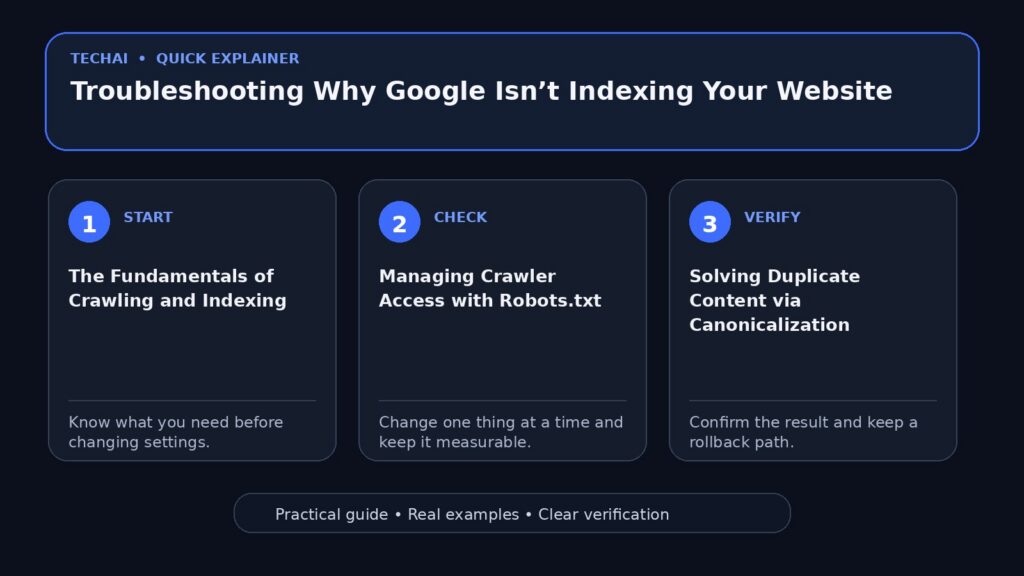
The Fundamentals of Crawling and Indexing
Before diving into specific fixes, it is essential to understand the workflow Google uses to populate its search index. Googlebot, the automated crawler, constantly moves across the web by following links from one page to another. When it finds a new URL, it attempts to visit the page to 'see' what is there. This discovery phase is known as crawling. If your site has no external links pointing to it, or if your internal linking structure is broken, Googlebot may never find your content in the first place.

Once a page is crawled, Google's systems analyze the text, images, and overall layout to determine its purpose. If the page meets technical requirements and does not violate spam policies, it is added to the Google Index. Indexing is not guaranteed for every page crawled; Google prioritizes content that is helpful, reliable, and provides a good user experience. If a page is deemed a duplicate of another existing page, it may be crawled but excluded from the index in favor of a 'canonical' version.
For most modern websites, this process happens automatically. However, technical barriers can interrupt this flow at any stage. Common issues include server errors that prevent Googlebot from reaching the site, or security settings that block automated traffic. Monitoring your site's status through tools like Google Search Console is the most effective way to see which pages have been successfully indexed and which have encountered errors during the crawling phase.
- Crawling: The discovery of URLs by Googlebot.
- Indexing: The storage and analysis of page content in Google's database.
- Discovery: How Google finds your URLs via links or sitemaps.
- Technical Requirements: Basic standards a page must meet to be eligible for indexing.
Managing Crawler Access with Robots.txt
A robots.txt file is a simple text file located at the root of your domain that tells search engine crawlers which parts of your site they are allowed to visit. Its primary purpose is to manage crawler traffic and avoid overloading your web server with too many requests at once. It is a critical tool for crawler management, but it is frequently misunderstood by website owners who attempt to use it for security or privacy.
It is vital to note that robots.txt is not a mechanism for keeping a web page out of Google Search. If a page is blocked in robots.txt, Googlebot will not crawl the content of that page, but the URL could still appear in search results if Google finds a link to it on another website. Because the crawler cannot access the page content, the search snippet will likely be empty or contain a message stating that information is unavailable due to robots.txt restrictions.
If you find that important sections of your site are missing from the index, check your robots.txt file for 'Disallow' directives that might be accidentally blocking Googlebot. Conversely, if you want to ensure a page is never indexed, you should not use robots.txt; instead, use a 'noindex' meta tag or password-protect the page. For those using hosted platforms like Wix or Blogger, the robots.txt file is often managed automatically by the platform, and manual edits may not be necessary or possible.
- Location: Must be placed at the root of the site (e.g., example.com/robots.txt).
- Directives: 'Allow' and 'Disallow' tell crawlers where they can go.
- Limitation: Does not prevent a URL from appearing in search if linked externally.
- Best Practice: Use it to manage crawl budget, not to hide sensitive content.
Solving Duplicate Content via Canonicalization
Canonicalization is the process Google uses to select the most representative URL from a set of duplicate or near-duplicate pages on your site. This is often referred to as 'deduplication.' When Google finds multiple URLs that lead to the same content—such as a product page accessible via different categories or both HTTP and HTTPS versions of a site—it chooses one to be the 'canonical' version and indexes that one. The other versions are considered duplicates and are typically not shown in search results.
While having duplicate content is common and often necessary for site functionality (such as regional variations or mobile-specific URLs), it can lead to situations where the 'wrong' version of a page is indexed. You can influence Google's choice by specifying a canonical URL using the rel="canonical" link element in your HTML head. This tells Google which version you prefer to be the primary one for search purposes.
If a page you recently published is not appearing, check if Google has consolidated it with another URL. This often happens if the content is too similar to an existing page. Ensuring each page has unique, high-quality content and correctly implemented canonical tags helps Google understand the structure of your site and ensures the correct pages are indexed for your target audience.
- Canonical URL: The version Google deems most representative of a set of duplicates.
- Deduplication: The process of filtering out duplicate URLs from search results.
- Rel="canonical": An HTML tag used to suggest a preferred URL to Google.
- Common Causes: HTTP vs HTTPS, mobile vs desktop URLs, and regional variations.
Leveraging Sitemaps for URL Discovery
A sitemap is a file where you provide information about the pages, videos, and other files on your site, and the relationships between them. Search engines like Google read this file to more intelligently crawl your site. While Googlebot can usually find most of your pages if your site is properly linked, a sitemap is particularly beneficial for large sites, sites with large archives, or new sites with few external links.
There are several types of sitemaps, including specialized extensions for images, news, and videos. For example, a video sitemap can help Google understand the duration, rating, and age-appropriateness of video content on your page. You can also use a sitemap index file to manage multiple sitemaps if your site is exceptionally large. Submitting your sitemap through Google Search Console gives Google a direct map of your site's structure and can speed up the discovery of new or updated content.
It is important to remember that a sitemap is a recommendation to Google, not a command. Including a URL in a sitemap does not guarantee that it will be indexed, but it ensures that Googlebot is aware of the URL's existence. For sites using CMS platforms like WordPress, sitemaps are often generated and updated automatically, reducing the manual workload for the site owner.
- XML Sitemaps: The standard format for listing site URLs for crawlers.
- Sitemap Extensions: Specialized maps for images, news, and video content.
- Sitemap Index: A file used to group and manage multiple individual sitemaps.
- Submission: Done via the Sitemaps report in Google Search Console.
Identifying Accidental Noindex Directives
The most common reason a page is intentionally excluded from the index is the presence of a 'noindex' directive. This can be implemented as a meta tag in the HTML `<head>` or as an `X-Robots-Tag` in the HTTP response header. When Googlebot encounters this directive, it will completely drop the page from Google Search results, even if other sites link to it.

Accidental 'noindex' tags often occur during website development. Developers frequently 'noindex' a staging or test site to prevent it from appearing in search results before it is ready. If these tags are not removed when the site goes live, the entire website will remain invisible to Google. It is a best practice to audit your live site's source code for `<meta name="googlebot" content="noindex">` or similar tags if you notice a lack of indexing.
In addition to 'noindex', Google supports other meta tags like 'nosnippet', which prevents a text snippet or video preview from appearing in search results, and 'noarchive', which prevents Google from showing a cached link for a page. Understanding how these tags interact with Googlebot is essential for controlling exactly how your content is presented—or hidden—in search results.
- Noindex Tag: A command that tells Google not to show the page in search results.
- X-Robots-Tag: A method to send indexing instructions via HTTP headers.
- Data-nosnippet: An attribute used to prevent specific parts of a page from being used in snippets.
- Audit Step: Check the HTML source code for any 'noindex' strings.
Utilizing Google Search Console for Recrawl Requests
If you have recently updated a page or fixed a technical error that was preventing indexing, you don't have to wait for Googlebot to find the changes on its own. Google Search Console provides a 'URL Inspection' tool that allows you to request a recrawl of individual URLs. This is particularly useful for urgent updates or when you have successfully resolved a 'noindex' or robots.txt error.
To request a recrawl, enter the URL into the inspection tool and, if the page passes a live test, select 'Request Indexing.' Note that you can only request indexing for URLs that you manage through a verified Search Console property. Google limits the number of individual indexing requests you can make, so it is more efficient to submit a sitemap if you have a large number of new or changed pages.
Recrawling is not instantaneous. Depending on various factors, it can take anywhere from a few days to several weeks for the changes to be reflected in Google's index. If you are using a hosted platform like Blogger or WordPress, these systems often notify search engines automatically when you publish new content, making manual requests less necessary for routine updates.
- URL Inspection Tool: Used to check the current index status of a specific URL.
- Request Indexing: A feature to ask Google to prioritize a page for recrawling.
- Live Test: A tool to see if Googlebot can currently access a page without errors.
- Timeline: Recrawling can take from a few days to several weeks.
Adhering to Google Search Essentials and Spam Policies
Even if your site is technically perfect, Google may choose not to index content that violates its Search Essentials (formerly Webmaster Guidelines). These policies are designed to ensure that search results remain helpful and safe for users. Key areas include technical requirements, such as ensuring your site is accessible to a browser, and spam policies, which prohibit deceptive practices like cloaking or automatically generated content.
Google prioritizes 'helpful, reliable, people-first content.' If a page is thin, provides no unique value, or is primarily designed to manipulate search rankings rather than help users, it may be excluded from the index. This is part of Google's broader effort to filter out low-quality content and malware. Ensuring your site is free from unwanted software and social engineering (phishing) is a prerequisite for maintaining a healthy presence in search results.
If your site has been flagged for a policy violation, you will often receive a notification in Google Search Console. Resolving these issues is critical, as 'Repeat Offenders' may face more severe or permanent removal from search results. Regularly reviewing the 'Security & Manual Actions' report in Search Console is a vital part of any indexing troubleshooting checklist.
- Search Essentials: The core requirements for a site to be eligible for Google Search.
- Spam Policies: Rules against deceptive practices like malware and thin content.
- Helpful Content: Google's preference for content created for humans, not search engines.
- Manual Actions: Penalties applied by human reviewers for policy violations.
Troubleshooting Hosted CMS Platforms
Many website owners use hosted content management systems (CMS) like WordPress, Blogger, or Wix. These platforms are designed to handle much of the technical SEO work automatically. For instance, they typically generate sitemaps and notify search engines when new posts are published. However, they also have specific settings that can inadvertently block indexing.
In WordPress, for example, there is a setting under 'Reading' labeled 'Discourage search engines from indexing this site.' If this box is checked, the platform will add a 'noindex' tag to every page on the site. Similarly, Blogger has settings for custom robots.txt and header tags that can prevent crawling if misconfigured. If you are using a CMS, your first step should always be to check the platform's internal SEO and privacy settings.
Because these platforms manage the server environment, you may have limited access to files like robots.txt or the ability to set custom HTTP headers. In these cases, you must rely on the platform's built-in tools or plugins to manage how Google interacts with your site. Always refer to the official support documentation for your specific CMS to understand how it handles search engine visibility.
- Privacy Settings: Internal CMS toggles that can enable or disable indexing.
- Automated Sitemaps: Features that handle URL submission without manual effort.
- Plugin Conflicts: Third-party tools that might override default SEO settings.
- Platform Documentation: The primary source for CMS-specific troubleshooting.
Key takeaways
- Indexing is a multi-step process involving discovery, crawling, and storage.
- Robots.txt manages crawler load but does not reliably hide pages from search results.
- The 'noindex' meta tag is the standard method for preventing a page from being indexed.
- Canonicalization helps Google choose the best version of duplicate content to display.
- Google Search Console is the essential tool for requesting recrawls and monitoring errors.
Common mistakes to avoid
- Using robots.txt to try and block a page from appearing in search results.
- Forgetting to remove 'noindex' tags after moving a site from staging to live.
- Submitting multiple manual indexing requests for the same URL in a short period.
- Ignoring duplicate content issues that lead to the wrong URL being indexed.
Check your website next
- Check your website free
- Full Website Audit — $9
- Website Growth Bundle — $39
- Website Fix Implementation — from $149
FAQ
How long does it take for Google to index a new page?
Crawling and indexing can take anywhere from a few days to several weeks. This timeline depends on factors like site authority, the complexity of the site, and Googlebot's current crawl rate.
Why is my page crawled but not indexed?
This often happens if Google considers the page a duplicate of another URL or if the content does not meet quality standards. Check for canonical tags and ensure the content provides unique value.
Can I force Google to index my site immediately?
No, you cannot force indexing. You can only 'request' it via Search Console or a sitemap. Google's algorithms ultimately decide when and if a page is added to the index.
Does a sitemap guarantee that all my URLs will be indexed?
No. A sitemap is a discovery tool that helps Google find your URLs. It does not guarantee indexing, as the content must still pass Google's quality and technical requirements.