
The 'Client Challenge' error is a common web browsing obstacle that occurs when a website's security or functional requirements are not met by your browser's current configuration. This error typically manifests as a message stating that a required part of the site could not load, often pointing toward disabled JavaScript, aggressive browser extensions, or underlying network issues. Because modern web applications rely heavily on client-side execution to verify user sessions and render content, any disruption in this communication flow triggers a challenge that the browser fails to complete. When the server issues a challenge, it is essentially asking the browser to prove it is a legitimate user and not a malicious bot, a process that requires specific scripts to run without interference.
Resolving these errors requires a systematic approach to identifying conflicts between your privacy settings and the site's technical requirements. While security tools like ad blockers and tracking prevention are essential for safe browsing, they can occasionally overreach and block scripts necessary for site authentication. By adjusting specific browser permissions and managing how extensions interact with web traffic, you can bypass these challenges without compromising your overall digital security posture. This guide provides a comprehensive walkthrough for users of Google Chrome, Microsoft Edge, and Mozilla Firefox to identify the root cause of these interruptions and restore access to essential web services.
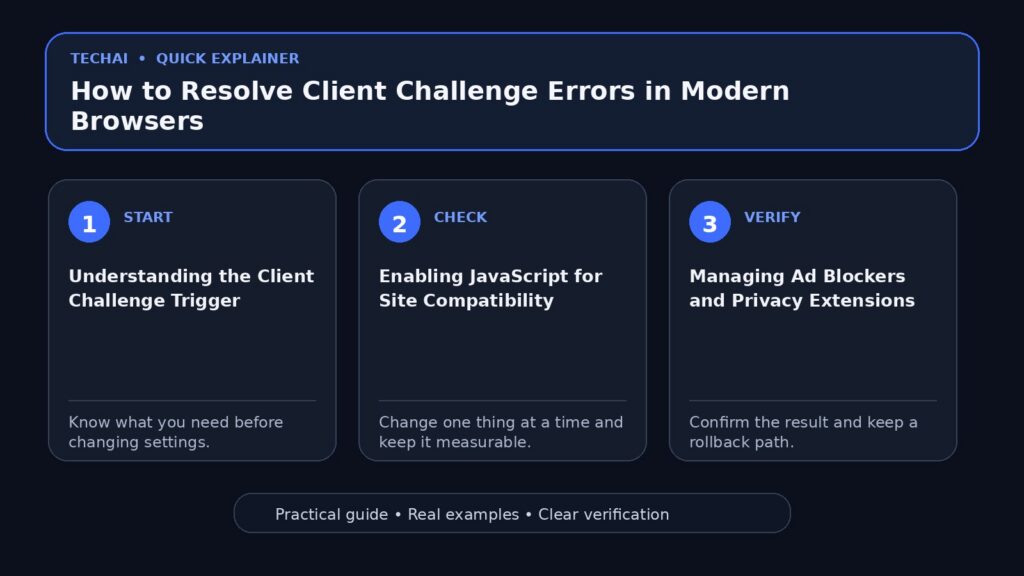
Understanding the Client Challenge Trigger
A Client Challenge is essentially a request from a web server for the browser to prove it can execute specific scripts or handle certain data before the full page is served. When you see this error, it means the server's request was either blocked or ignored. This is frequently caused by JavaScript being disabled, which prevents the site from running the 'challenge' script required to verify your connection. Official support documentation from Mozilla and Google indicates that this error is a direct result of a required part of the site failing to load, which can be triggered by browser settings or network-level interruptions.

Beyond simple settings, the error often stems from a breakdown in the handshake between your device and the host server. If the browser cannot load a required component, it defaults to this error state to prevent a broken or insecure user experience. Identifying whether the issue is local to your browser or related to your network is the first step in troubleshooting. The challenge is a security gate; if the browser cannot 'answer' the gatekeeper because an extension has hidden the key, the connection is terminated to protect the integrity of the web application.
It is important to note that these challenges are not just about security but also about functionality. Many modern sites use these scripts to determine how to render content based on your device's capabilities. When an ad blocker or a restrictive firewall prevents these scripts from executing, the site cannot determine the appropriate way to display information, leading to the 'Client Challenge' message. This is why the error message often suggests checking your connection or trying a different browser as a diagnostic step.
- JavaScript execution failure
- Incompatibility with browser extensions
- Network-level script blocking
- Outdated browser cache or cookies
- Aggressive tracking prevention settings
Enabling JavaScript for Site Compatibility
JavaScript is the primary engine behind modern web interactivity. If it is disabled globally or for a specific site, the 'Client Challenge' error is almost guaranteed. Most browsers allow you to manage JavaScript permissions through their privacy or site settings menus. In Google Chrome, this is found under 'Site settings,' while Microsoft Edge and Mozilla Firefox offer similar controls in their security sections. Without JavaScript, the browser cannot process the logic required to satisfy the server's security requirements.
If you prefer not to enable JavaScript globally for security reasons, you can usually add the specific website causing the error to an 'Allow' list. This ensures that trusted sites can function correctly while maintaining a more restrictive policy for the rest of the web. After changing these settings, a full page refresh is required to re-initiate the challenge process. This targeted approach allows you to maintain a high security posture without sacrificing the usability of the specific services you need to access.
In some cases, JavaScript might be enabled in the browser settings, but a secondary security suite or a 'Strict' tracking prevention mode might still be interfering with it. For instance, Microsoft Edge's tracking prevention can be set to 'Basic', 'Balanced', or 'Strict'. If set to 'Strict', it may block the very scripts needed to complete a Client Challenge. Ensuring that your browser is not in an overly aggressive privacy mode is a critical step in resolving persistent script-related errors.
- Navigate to browser settings and search for 'JavaScript'
- Ensure the toggle is set to 'Allowed (recommended)'
- Check the 'Block' list for the specific URL
- Add the problematic site to the 'Allow' exceptions list
Managing Ad Blockers and Privacy Extensions
Ad blockers and privacy-focused extensions are the most frequent culprits behind Client Challenge errors. These tools work by identifying and blocking scripts that look like trackers or advertisements. Occasionally, a site's legitimate authentication or challenge script is misidentified as a tracker, causing the extension to kill the process before it completes. This is particularly common with extensions that use community-maintained filter lists, which may occasionally include false positives for essential site scripts.
To diagnose this, you should temporarily disable your ad blocker or whitelist the specific domain. If the site loads correctly after disabling the extension, you have confirmed the source of the conflict. You can then adjust the extension's filter lists or keep the site whitelisted to prevent future errors. Most extensions provide a simple toggle in the browser toolbar to 'Pause' or 'Disable' protection for the current site, making this a quick and non-destructive test.
It is also worth checking if multiple extensions are performing the same task. Having two different ad blockers or privacy tools running simultaneously can create complex conflicts that are difficult to troubleshoot. If one extension allows a script but the second one blocks it, the Client Challenge will still fail. Streamlining your extensions to a single, well-configured privacy tool can often prevent these types of errors from occurring in the first place.
- Click the extension icon in the browser toolbar
- Select 'Disable for this site' or 'Pause on this site'
- Refresh the page to see if the challenge clears
- Check for 'Cosmetic Filtering' settings that might hide site elements
Troubleshooting Network and Connection Issues
Sometimes the 'Client Challenge' isn't about your browser settings, but how your network handles data. Firewalls, VPNs, and corporate proxy servers can strip out headers or block the specific ports and scripts needed for a site to verify a client. If your network environment is too restrictive, the browser may never receive the challenge it needs to solve. This is common in office environments where IT policies might block certain types of dynamic script execution for security reasons.

Testing the site on a different network, such as a mobile hotspot, can quickly determine if the issue is local to your current internet connection. If the site works on a different network, you may need to adjust your router settings or contact your network administrator to allow the necessary traffic. This helps isolate whether the 'Client Challenge' is a result of your local machine's configuration or an external filter applied by your Internet Service Provider (ISP) or corporate network.
Additionally, ensure that your system's date and time are synchronized. Many security challenges rely on time-sensitive tokens or SSL/TLS certificates. If your system clock is significantly out of sync with the server, the challenge may fail automatically because the security token is perceived as expired or not yet valid. Most modern operating systems have an option to 'Set time automatically,' which should be enabled to avoid these types of cryptographic mismatches.
- Disable active VPN connections temporarily
- Check if a corporate firewall is blocking script execution
- Restart your router to clear DNS cache issues
- Verify that your system clock is synchronized
Using Incognito or Guest Mode for Diagnosis
A highly effective way to isolate the cause of a Client Challenge error is to use your browser's Incognito or Guest mode. These modes typically run without your standard extensions and with a clean cache. If the website works in Incognito mode, the problem is almost certainly an extension or a corrupted cookie in your main profile. This diagnostic step is recommended by both Google and Microsoft as a primary way to troubleshoot loading errors.
This method saves time by bypassing the need to disable extensions one by one. If the error persists even in Incognito mode, the issue is likely related to your global browser settings, your network, or the website's server itself. It provides a 'clean room' environment that eliminates the variables introduced by your personal browsing history and customizations. If the site loads here, you know the fix lies within your standard profile's settings or extensions.
When using Incognito mode, be aware that some browsers allow certain extensions to run if you have specifically granted them permission in the past. Ensure that all extensions are truly disabled in the Incognito window by checking the 'Extensions' management page. If the site still fails in Incognito, it suggests the problem is deeper, perhaps involving the browser's core installation or an external factor like a VPN or firewall that operates independently of the browser's internal modes.
- Open a new Incognito (Chrome) or InPrivate (Edge) window
- Navigate to the problematic URL
- Observe if the challenge completes successfully
- If successful, return to the main window to clear cookies
Clearing Browser Cache and Site Data
Corrupted site data can lead to a loop where the browser attempts to use an old, invalid session token to answer a new challenge. This mismatch results in a failure. Clearing the cache and cookies specifically for the site in question can reset the handshake process and allow a fresh, valid challenge to be issued. This is often more effective than a simple page refresh because it forces the browser to discard all previously stored information about the site.
In most modern browsers, you can clear data for a single site rather than wiping your entire history. This is done by clicking the lock icon in the address bar and selecting 'Cookies and site data' or 'Site settings.' This targeted approach preserves your logins and preferences for other websites while fixing the specific error. It is a surgical way to resolve conflicts without the inconvenience of a full browser cleanup.
After clearing the site data, it is advisable to close the tab and open the site in a new one. This ensures that any cached redirects or temporary session states are fully purged from the browser's active memory. If the 'Client Challenge' was caused by a stale cookie that the server no longer recognized, this process will force the server to issue a brand-new challenge, which the browser can then solve correctly using its current, updated settings.
- Click the lock or 'info' icon next to the URL
- Select 'Cookies and site data'
- Choose 'Manage on-device site data' or 'Clear data'
- Restart the browser and attempt to reload the site
Resetting Browser Settings to Default
If all other troubleshooting steps fail, resetting your browser to its default settings is a final resort. This action will disable all extensions and reset all permissions (like JavaScript and pop-up blockers) to their original state. It is an effective way to eliminate deep-seated configuration conflicts that are difficult to find manually. Both Chrome and Edge provide a 'Reset settings' option in their advanced menus specifically for this purpose.
Before performing a reset, ensure you are signed in to sync your bookmarks and passwords, as these are usually preserved, but other customizations like your homepage, new tab page, and pinned tabs will be lost. This step is particularly useful if malware or unwanted software has altered your browser's internal configuration without your knowledge. A reset returns the browser to the 'factory' state that the website developers expect.
Once the reset is complete, try accessing the problematic website before re-enabling any extensions. If the site works, you can then re-enable your extensions one by one, testing the site after each one. This 'process of elimination' will help you identify exactly which extension was causing the 'Client Challenge' error, allowing you to find an alternative or adjust its specific settings to avoid future conflicts.
- Go to Browser Settings > Reset settings
- Confirm the action to restore settings to defaults
- Re-enable necessary extensions one at a time
- Check for browser updates to ensure latest version
Key takeaways
- JavaScript must be enabled for the browser to solve the 'challenge' script required by the server.
- Ad blockers and privacy extensions are the most common causes of script-related loading failures.
- Incognito mode is the fastest way to determine if an extension is causing the error.
- Network-level restrictions (VPNs/Firewalls) can block the communication necessary for site verification.
- Clearing site-specific cookies can resolve errors caused by expired or corrupted session data.
Common mistakes to avoid
- Assuming the website is 'down' when the issue is actually a local browser configuration conflict.
- Disabling JavaScript globally for security without realizing it breaks most modern web authentication.
- Forgetting to refresh the page after adjusting extension settings or whitelisting a domain.
- Overlooking system time/date settings, which can cause security certificate and challenge failures.
Useful TechAI links
FAQ
Why does the error say JavaScript is disabled when I haven't changed any settings?
Even if you didn't manually disable JavaScript, certain 'Strict' tracking prevention modes or security extensions can block specific scripts from running. This effectively disables the JavaScript functionality required for that specific site's challenge.
Can a VPN cause a Client Challenge error?
Yes, some websites flag IP addresses from known VPN providers as suspicious. This may trigger a more difficult challenge that some browsers or extensions might block, or the VPN itself might interfere with the script's execution.
Will clearing my cache delete my saved passwords?
No, clearing your browser cache and site data typically removes temporary files and cookies. Saved passwords are managed separately in your browser's password manager or Google/Microsoft account.
What should I do if the error persists across multiple different browsers?
If the error occurs in Chrome, Firefox, and Edge simultaneously, the issue is likely at the network level (router/ISP) or with the website's server itself rather than your specific browser settings.