When a website fails to load correctly, displaying errors like "a required part of this site couldn’t load" or failing to render interactive elements, the culprit is often stored browsing data. Over time, Google Chrome and Microsoft Edge accumulate temporary files, cookies, and scripts designed to speed up your experience. However, if these files become corrupted or if a website updates its backend code while your browser retains an older version of the site's assets, a conflict occurs. This conflict can prevent JavaScript from executing properly or cause the browser to loop through outdated login credentials, effectively locking you out of the service.
Managing your browsing data is not just about privacy; it is a fundamental troubleshooting step for maintaining web performance. By selectively clearing your cache and managing site-specific permissions, you can resolve most loading errors without losing your saved passwords or bookmarks. This guide provides a comprehensive walkthrough of how to identify, manage, and clear problematic data in the world’s most popular Chromium-based browsers, ensuring your connection to the web remains seamless and secure.
Understanding the Types of Browsing Data
Before diving into the clearing process, it is essential to understand what you are deleting. Browsing data is generally categorized into three main types: history, cookies, and cached images or files. Your browsing history is a simple log of the URLs you have visited. While clearing this can free up some local search suggestions, it rarely fixes site loading issues. The real culprits are usually found in the cookies and the cache.

Cookies are small files created by websites to store snippets of information, such as your login status, site preferences, or items in a shopping cart. If a cookie becomes corrupted or contains an expired session token, the website may fail to load or keep redirecting you to a login page. Cached images and files, on the other hand, are local copies of website assets like logos, scripts, and stylesheets. The browser stores these so it doesn't have to download them every time you visit, but if the site owner updates these files on the server and your browser continues to use the old cached versions, the site will likely break.
Modern browsers also store 'on-device site data,' which includes more complex information like local databases used by web apps. When a site reports that a 'required part' is missing, it often means the browser is looking for a specific script or data structure in the cache that no longer matches the live version of the site. Understanding these distinctions allows you to perform 'surgical' strikes—clearing only what is necessary to fix the problem while keeping your active sessions intact where possible.
- Browsing History: A list of sites you've visited and the time of visit.
- Cookies: Data used to remember you and your preferences on specific sites.
- Cache: Stored images, scripts, and page layouts to reduce loading times.
- Site Settings: Permissions you've granted, such as camera or location access.
- Hosted App Data: Information stored by web-based applications for offline use.
How to Clear Browsing Data in Google Chrome
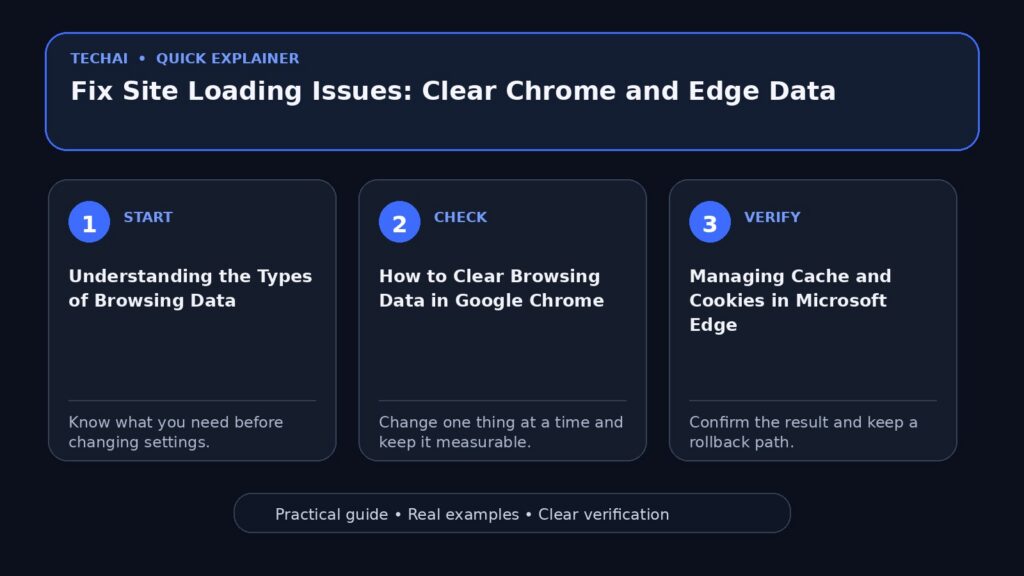
Google Chrome provides a centralized menu for managing your data, accessible via the 'Privacy and security' section of the settings. To begin, click the three-dot menu in the top-right corner, select 'Settings,' and then navigate to 'Privacy and security' on the left-hand sidebar. From here, you can select 'Delete browsing data.' Chrome offers two modes: Basic and Advanced. The Basic tab is usually sufficient for resolving loading errors, as it targets the cache and cookies simultaneously.
When using the 'Delete browsing data' tool, the 'Time range' setting is critical. If a site recently stopped working, you might only need to clear data from the 'Last 24 hours' or 'Last 7 days.' However, for persistent issues that have lasted for weeks, selecting 'All time' is the most reliable way to ensure every corrupted file is removed. Note that clearing cookies will sign you out of most websites, so ensure you have your login credentials ready before proceeding.
For a more targeted approach, Chrome allows you to manage data for individual sites. Instead of clearing everything, you can go to 'Site settings' and then 'View permissions and data stored across sites.' This is particularly useful if only one specific website, like your banking portal or a work application, is failing to load. By searching for that specific domain and clicking the trash icon, you can reset that site's local environment without affecting your other open tabs or logged-in sessions.
- Open Chrome Settings > Privacy and security > Delete browsing data.
- Choose 'All time' for the most thorough cleanup of corrupted files.
- Check 'Cookies and other site data' and 'Cached images and files.'
- Use the 'Advanced' tab if you specifically need to clear autofill form data or passwords.
- Click 'Delete data' and restart the browser to finalize the changes.
Managing Cache and Cookies in Microsoft Edge
Microsoft Edge, built on the same Chromium engine as Chrome, follows a similar logic but organizes its settings under 'Privacy, search, and services.' To access these tools, click the three-dot 'Settings and more' icon and select 'Settings.' Within the 'Privacy' section, look for the 'Clear browsing data' header. Edge provides a unique feature that allows you to choose what to clear every time you close the browser, which can be a helpful preventative measure for users who frequently encounter loading errors.
When you click 'Choose what to clear,' Edge presents a list similar to Chrome's, including browsing history, download history, cookies, and cached images. One distinction in Edge is its integration with Microsoft account sync. If you are signed in, clearing data on one device may clear it on others unless you have configured your sync settings otherwise. This is important to remember if you are troubleshooting a desktop issue but want to keep your mobile browser sessions active.
Edge also includes a 'Tracking prevention' system that can sometimes interfere with site loading. If a site's 'required parts' are being blocked, it might be because Edge's 'Strict' tracking prevention is stopping a necessary third-party script from executing. If clearing the cache doesn't work, try adjusting the tracking prevention to 'Balanced' or adding the problematic site as an exception. This ensures that the browser's security features aren't accidentally breaking the functionality of trusted websites.
- Navigate to Edge Settings > Privacy, search, and services.
- Select 'Choose what to clear' under the 'Clear browsing data now' section.
- Select 'Cached images and files' to fix visual or script-loading errors.
- Toggle 'Cookies and other site data' to resolve login or session loops.
- Review 'Tracking prevention' settings if sites continue to fail after clearing data.
Resolving JavaScript and Site Permission Errors
A common reason for the 'JavaScript is disabled' error is a misconfiguration in the browser's site settings. JavaScript is the engine that powers interactive elements on the web; without it, most modern sites cannot function. In both Chrome and Edge, you can verify this by going to the 'Site settings' menu. Ensure that JavaScript is set to 'Allowed (recommended).' If it is already enabled globally, check the 'Customized behaviors' list to see if the specific site you are trying to visit has been accidentally blocked.

Beyond JavaScript, other permissions like 'Pop-ups and redirects' or 'Intrusive ads' can impact how a site loads. Some sites require pop-ups for authentication or to display specific content. If a site fails to load a 'required part,' check the address bar for a small icon indicating that a pop-up or script was blocked. Clicking this icon usually allows you to grant a one-time or permanent exception for that site.
Network-level issues can also mimic browser setting errors. If your browser settings are correct but the site still won't load, the issue might be an ad blocker extension or a corporate firewall. Ad blockers often function by preventing certain scripts from loading. If these scripts are essential to the site's operation, the page will break. Always try disabling your extensions or using a different network (like a mobile hotspot) to determine if the problem is local to your browser or external to your connection.
- Check Site Settings to ensure JavaScript is globally enabled.
- Look for 'Blocked' icons in the address bar that indicate suppressed scripts.
- Verify that the site isn't on a 'Block' list within the browser's privacy settings.
- Disable ad blockers temporarily to see if they are over-filtering content.
- Ensure 'On-device site data' is allowed for sites that require local storage.
Using Incognito and Guest Modes for Diagnosis
One of the most effective ways to determine if your browsing data is the cause of a loading issue is to use Incognito mode (Chrome) or InPrivate browsing (Edge). When you open a window in these modes, the browser starts with a clean slate: it does not use your existing cookies, it ignores most of your cached files, and by default, it disables all extensions. If a website loads perfectly in Incognito mode but fails in a standard window, you have confirmed that the issue lies within your stored data or an extension.
Guest mode is another useful tool, particularly in Chrome. While Incognito mode still uses some of your profile's underlying settings, Guest mode provides a completely fresh profile environment. This is helpful for determining if a deeper profile corruption is occurring. If a site works in Guest mode but not in Incognito, the problem might be related to your Google Account settings or a specific browser flag you have enabled.
Using these modes saves time by preventing unnecessary data deletion. If a site still doesn't load in Incognito mode, clearing your cache is unlikely to help. In that case, the problem is more likely related to your internet connection, the website's server status, or a hardware-level issue like your GPU acceleration settings. Always use these 'clean' environments as your first diagnostic step before performing a full data wipe.
- Press Ctrl+Shift+N (Chrome) or Ctrl+Shift+P (Edge) to open a private window.
- Test the problematic URL in the private window to bypass the local cache.
- If the site works, proceed to clear cookies and cache in the main window.
- If the site fails, the issue is likely not related to your stored browsing data.
- Use Guest mode to rule out profile-specific setting conflicts.
The Impact of Extensions and Ad Blockers
Extensions are powerful tools, but they are also a frequent source of site loading failures. Because extensions have the authority to modify the code of the pages you visit, they can inadvertently break a site's functionality. Security extensions, ad blockers, and even 'dark mode' enforcers can prevent 'required parts' of a site from loading by misidentifying them as threats or unwanted advertisements.
To troubleshoot extensions, you don't necessarily need to delete them. Both Chrome and Edge allow you to toggle extensions on and off individually. Navigate to the 'Extensions' menu (often represented by a puzzle piece icon) and disable everything. If the site loads, re-enable your extensions one by one until the site breaks again. This 'binary search' method allows you to identify the specific extension causing the conflict.
Keep in mind that some extensions continue to run in the background even if they don't have a visible icon. Managing them through the official 'Manage Extensions' page is the only way to ensure they are fully inactive. Additionally, ensure your extensions are updated; developers frequently release patches to fix compatibility issues with popular websites. If an extension hasn't been updated in years, it may be time to find a modern alternative that won't interfere with your browsing.
- Access extensions via chrome://extensions or edge://extensions.
- Disable all extensions to isolate the browser from third-party code.
- Check for 'Developer mode' to see if unpacked extensions are causing issues.
- Update all extensions to ensure compatibility with the latest browser version.
- Remove any extensions that you do not recognize or no longer use.
Resetting Browser Settings to Default
If clearing the cache, managing cookies, and disabling extensions fail to resolve the issue, the 'nuclear option' is to reset your browser settings to their original defaults. This is a powerful troubleshooting step that fixes deep-seated configuration errors without deleting your most important personal data. When you perform a reset, the browser will revert your startup page, new tab page, search engine, and pinned tabs. It will also disable all extensions and clear temporary data like cookies.
Crucially, a settings reset does not delete your bookmarks, browsing history, or saved passwords. This makes it a relatively safe procedure for most users. In Chrome, this is found under 'Reset settings' > 'Restore settings to their original defaults.' In Edge, the path is 'Reset settings' > 'Restore settings to their default values.' This process effectively 'reinstalls' the browser's configuration layer, which can resolve issues caused by unwanted software or accidental setting changes.
After a reset, you will need to re-enable your preferred extensions and sign back into your favorite websites. While this takes a few minutes, it is often faster than trying to hunt down a single obscure setting that is causing a site to fail. If a website still won't load after a full reset, the problem is almost certainly not with your browser, but rather with the website itself or your network environment.
- Use 'Reset settings' as a final step before considering a full reinstallation.
- Confirm that bookmarks, history, and passwords will be preserved.
- Be prepared to re-enable extensions and re-configure your homepage.
- This step clears the 'on-device site data' that manual clearing might miss.
- Restart your computer after a reset to ensure all background processes refresh.
Key takeaways
- Clearing the cache resolves version mismatches between your browser and the website server.
- Deleting cookies fixes session-related errors but will require you to log back into most sites.
- Incognito mode is the fastest way to diagnose if browsing data or extensions are causing a problem.
- JavaScript must be enabled for most modern websites to load their 'required parts' correctly.
- Resetting browser settings is a safe way to fix configuration issues without losing bookmarks or passwords.
Common mistakes to avoid
- Clearing 'All time' data when only a single site is having issues (use site-specific clearing instead).
- Forgetting that clearing cookies will sign you out of important accounts.
- Assuming a site is 'down' before testing it in an Incognito or Guest window.
- Neglecting to check if an ad blocker is the reason a specific site element won't load.
Useful TechAI links
FAQ
Will clearing my browsing data delete my saved passwords?
No, as long as you do not check the 'Passwords and other sign-in data' box in the Advanced clearing menu. The basic clearing process only targets history, cookies, and cached files.
Why does a site work in Incognito mode but not in a normal window?
This usually means that either a corrupted cookie/cached file in your main profile is causing a conflict, or one of your installed extensions is interfering with the site's code.
How often should I clear my browser cache?
There is no need to clear it on a schedule. You should only clear your cache when you encounter specific site loading issues, visual glitches, or performance lag.
What is the difference between 'Basic' and 'Advanced' clearing in Chrome?
Basic clears history, cookies, and cache. Advanced allows you to specifically target things like autofill data, site permissions, and hosted app data while leaving other categories untouched.
Can clearing data fix 'JavaScript is disabled' errors?
While clearing data helps, you usually need to go into 'Site Settings' to ensure JavaScript is actually toggled to 'Allowed' for that specific website.