In an era where digital threats are evolving rapidly, securing your primary digital identity—your Google Account—is no longer optional. According to the Cybersecurity and Infrastructure Security Agency (CISA), hackers are increasingly using advanced technology to exploit weak spots in software and systems. Because your Google Account often serves as a gateway to your emails, financial information, and personal memories, it requires a multi-layered defense strategy that goes beyond a simple password. This guide implements the four core cybersecurity pillars recommended by CISA: using strong passwords, enabling multifactor authentication (MFA), recognizing phishing scams, and keeping software updated.
By combining these federal recommendations with Google's built-in security tools, you can create a robust shield against unauthorized access and data breaches. CISA emphasizes that cyber threats are getting faster and smarter, putting the economy and individual security at risk. However, by taking proactive steps such as using a password manager and performing regular security audits, individuals can significantly reduce their attack surface. This tutorial provides a practical roadmap to auditing your current settings and implementing these essential protections to ensure your digital life remains private and secure.
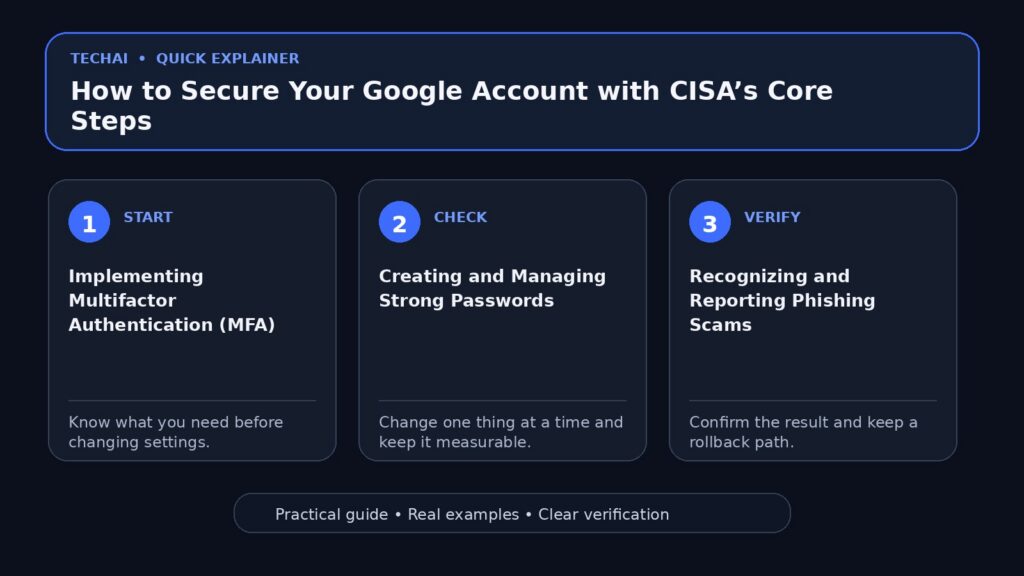
Implementing Multifactor Authentication (MFA)
Multifactor authentication is the single most effective way to prevent unauthorized access to your Google Account. CISA identifies MFA as a core requirement for individual security because it requires a second form of verification beyond just a password. Even if a malicious actor manages to steal your login credentials through a data breach or phishing, they cannot access the account without the second factor, which is typically tied to a physical device you own. This simple step blocks the vast majority of automated bot attacks and targeted account takeover attempts.

Google provides several methods for MFA, which they often refer to as 2-Step Verification. When you enable this, Google will prompt you for a code or a tap on a trusted device whenever you sign in from a new location or browser. For the most seamless experience, Google Prompts allow you to simply tap 'Yes' on your smartphone to verify your identity. For those seeking the highest level of protection, physical security keys are recommended as they are resistant to even the most sophisticated phishing attacks.
To set this up, navigate to the Security section of your Google Account. You should prioritize methods that do not rely solely on SMS, as these can be vulnerable to SIM-swapping. Instead, use the Google app prompts or an authenticator app. Always ensure you have generated and safely stored 'Backup Codes.' These are one-time use codes that allow you to regain access to your account if you lose your primary phone or security key, preventing a permanent lockout from your digital life.
- Navigate to Google Account Security settings to find '2-Step Verification'.
- Use 'Google Prompts' for a seamless experience where you tap 'Yes' on your phone.
- Consider using a physical security key for the highest level of protection.
- Download and print 'Backup Codes' to ensure access if you lose your device.
Creating and Managing Strong Passwords
A strong password is your first line of defense, but it must be unique to your Google Account. CISA recommends using strong, complex passwords that are difficult for automated tools to guess. A common mistake is using personal information like birthdays or pet names, which can be easily discovered by hackers through social media. Instead, a strong password should be a long string of random characters, numbers, and symbols that bears no relation to your personal life.
Remembering unique, complex strings for every service is nearly impossible for most users, which is why the use of a password manager is officially recommended by CISA as a core security practice. Google includes a built-in Password Manager that helps you generate, store, and automatically fill in complex passwords across your devices. By using this tool, you can ensure that your Google Account password is not reused on other websites, which is vital because if a smaller, less secure website is breached, hackers often try those same credentials on major platforms like Gmail.
Regularly auditing your saved passwords is also essential. Google's Password Manager can notify you if any of your saved credentials have been compromised in a third-party data breach. If you receive such an alert, you should change the affected password immediately. For your primary Google Account, aim for a length of at least 12 to 15 characters. This length, combined with complexity, makes it mathematically difficult for modern 'Super Intelligence' or brute-force tools to crack your code within a reasonable timeframe.
- Ensure your password is at least 12-15 characters long with a mix of types.
- Avoid using personal information like birthdays or pet names.
- Use the Google Password Manager to audit your saved passwords for leaks.
- Change your password immediately if Google alerts you of a third-party breach.
Recognizing and Reporting Phishing Scams
Phishing remains one of the most common ways accounts are compromised. These scams involve fraudulent emails or messages designed to trick you into revealing your password or clicking a malicious link. CISA emphasizes that individuals must learn to avoid and report these scams to maintain a secure digital environment. While Google's AI-powered protections in Gmail block the majority of these threats, sophisticated 'spear-phishing' attempts may still land in your inbox by mimicking the branding of trusted organizations.
To protect yourself, always verify the sender's actual email address rather than just looking at the display name. Scammers often use names like 'Google Security' but the underlying email address is a random string of characters. You should also hover over any links before clicking them to see the actual destination URL in the corner of your browser. If the URL looks suspicious or does not match the official website of the company, do not click it.
Reporting these attempts is just as important as avoiding them. When you mark an email as 'Phishing' in Gmail, you are feeding data back into Google's security infrastructure, helping their AI better protect other users. Be especially wary of messages that create a false sense of urgency, such as claiming your account will be deleted in 24 hours if you don't 'verify' your details. Official organizations rarely ask for sensitive information like passwords or social security numbers via email.
- Check the sender's actual email address, not just the display name.
- Hover over links to see the destination URL before clicking.
- Be wary of messages creating a false sense of urgency regarding account status.
- Use the 'Report Phishing' option in Gmail to help improve AI filters.
Maintaining Software and System Updates
The fourth pillar of CISA's security framework is keeping software updated. Hackers frequently exploit known vulnerabilities in older versions of browsers and operating systems. When Google releases an update for Chrome or Android, it often includes critical security patches that close these 'weak spots' before they can be widely exploited. Delaying an update by even a few days can leave your devices vulnerable to N-day exploits that are actively being used in the wild.

For Google Account users, this means ensuring that the devices you use to access your account—including your mobile phone, tablet, and laptop—are running the latest software. This includes your mobile OS, your web browser, and any standalone Google apps like Drive or Photos. Many of these updates can be set to occur automatically in the background, which CISA recommends to reduce the burden on the user while maintaining a high level of security.
Beyond just the operating system, you should also audit your browser extensions and third-party apps. Old extensions that are no longer receiving updates from their developers can become security risks. If you are using Google Chrome, you can use the 'Safety Check' feature in settings to verify that your browser is up to date, check for malicious extensions, and ensure that 'Safe Browsing' is enabled to protect you from dangerous websites in real-time.
- Enable automatic updates in your device's system settings.
- Restart your browser regularly to ensure pending updates are applied.
- Remove old apps or browser extensions that no longer receive updates.
- Check the 'Safety Check' feature in Chrome to verify browser health.
Using Google's Security Checkup Tool
Google provides a centralized 'Security Checkup' tool that simplifies the process of following CISA's recommendations. This tool provides a personalized list of security suggestions based on your account's current state. It can identify which devices are currently logged in, which third-party apps have access to your data, and whether you have any outdated security settings. It acts as a guided tour through your account's defenses, highlighting areas that need immediate attention.
Regularly performing a Security Checkup allows you to see a 'snapshot' of your account's health. It is particularly useful for identifying 'ghost' devices—old phones or tablets you no longer use but that still have active sessions. Revoking access for these devices reduces your 'attack surface,' a key concept in professional risk management. If a device you don't recognize is listed, you can sign it out instantly and change your password to secure the account.
The tool also audits third-party app permissions. Over time, many users grant various apps access to their Google Drive or Calendar and then forget about them. If one of those third-party apps is compromised, your Google data could be at risk. The Security Checkup makes it easy to see exactly what each app can access and revoke permissions for any service you no longer use or trust. CISA and Google recommend performing this check at least once every few months.
- Visit 'myaccount.google.com/security-checkup' every three months.
- Review the 'Your devices' list and sign out of unfamiliar hardware.
- Check 'Third-party access' to see which apps can read your data.
- Verify that your recovery phone number and email address are current.
Privacy Controls and Data Management
Security and privacy are deeply linked. Google's 'Safer by Design' philosophy means that many protections are built-in, but users are encouraged to customize their settings to fit their comfort level. Managing who can see your data and how it is used reduces the amount of information available to potential bad actors who might use it for social engineering or identity theft. The less public information available about your habits and location, the harder it is for a scammer to craft a convincing phishing message.
Within your Google Account, you can manage settings for Search, Maps, and YouTube. For example, setting your location history to auto-delete after a certain period can limit the digital footprint you leave behind. While these are primarily privacy settings, they contribute to your overall security by minimizing the data that could be exposed in a hypothetical breach. Google also offers an 'Incognito mode' in Maps and Search for times when you don't want your activity saved to your account at all.
Furthermore, you should review your 'Ad Settings' to control how your data is used for personalization. Google states that they do not sell your personal information to anyone, but they do use data to show you relevant ads. By refining these settings, you can limit the data profile that exists about you. For families, using 'Family Link' allows parents to set digital boundaries and manage security settings for children, ensuring the next generation is protected from online threats from an early age.
- Use the Privacy Primer to understand how your data is handled.
- Set up 'Auto-delete' for your Web & App Activity.
- Review your 'Ad Settings' to control data used for personalization.
- Use 'Family Link' to set digital boundaries for children's accounts.
Advanced Protections for High-Risk Users
For individuals who may be at a higher risk of targeted attacks—such as journalists, activists, or business leaders—Google offers an 'Advanced Protection Program.' This program goes beyond standard security by requiring physical security keys for sign-in and providing even more stringent protections against phishing. It is designed for those who are likely to be targeted by state-sponsored actors or professional hacking groups who use sophisticated methods to bypass standard MFA.
While not necessary for every user, understanding that these options exist is part of a comprehensive security mindset. The Advanced Protection Program limits third-party app access to your most sensitive data, such as your emails and files in Drive, and performs more rigorous checks on file downloads in Chrome to prevent malware infections. It also adds extra steps to the account recovery process to prevent social engineering attacks where a hacker tries to impersonate you to regain access to 'their' account.
For most people, following the four core CISA steps provides a high level of safety. However, if you handle sensitive critical infrastructure data or high-value business information, these additional layers can provide peace of mind. CISA notes that organizations of all sizes should have an incident response plan and use logging; for an individual, the Advanced Protection Program is the closest equivalent to these enterprise-grade security measures, ensuring that even if a password is stolen, the account remains impenetrable.
- Advanced Protection requires two physical security keys for setup.
- It limits third-party app access to your most sensitive data.
- It performs more rigorous checks on file downloads in Chrome.
- Account recovery involves extra steps to prevent social engineering.
Key takeaways
- Enable 2-Step Verification (MFA) to block the majority of unauthorized login attempts.
- Use a password manager to maintain unique, complex passwords for every service.
- Keep all software, including browsers and operating systems, updated to the latest versions.
- Regularly perform a Google Security Checkup to audit connected devices and app permissions.
- Learn to identify phishing red flags like suspicious senders and urgent requests for data.
Common mistakes to avoid
- Reusing the same password across multiple websites, which leads to credential stuffing attacks.
- Ignoring software update notifications, leaving known vulnerabilities open to exploitation.
- Failing to set up or update recovery phone numbers and email addresses.
- Trusting the 'Display Name' of an email sender without verifying the actual email address.
Check your website next
- Check your website free
- Full Website Audit — $9
- Website Growth Bundle — $39
- Website Fix Implementation — from $149
FAQ
What is the most important step I can take today?
Enabling multifactor authentication (MFA) is the most critical action. It adds a layer of security that prevents hackers from accessing your account even if they have your password.
Does Google sell my personal information to third parties?
No, Google states that they do not sell your personal information to anyone. They use data to provide services and allow you to control your privacy through account settings.
How often should I check my security settings?
CISA and Google recommend regular reviews. Performing a 'Security Checkup' every few months or after any major security news is a good habit to maintain.
What should I do if I think I've been phished?
Immediately change your Google Account password and run a Security Checkup. Check for any unauthorized changes to your recovery information or active sessions.