In the modern professional landscape, the traditional method of sending email attachments has become obsolete for large-scale projects. High-resolution media, complex datasets, and extensive documentation require robust cloud-based solutions that offer more than just storage. Platforms like Google Drive, Microsoft OneDrive, and Apple iCloud have evolved into sophisticated collaboration hubs that allow teams to synchronize work across devices while maintaining strict security protocols. Understanding the nuances of these systems is essential for protecting intellectual property and ensuring seamless workflow integration across various operating systems and hardware configurations.
This guide provides a comprehensive technical overview of how to leverage these platforms for secure, large-file sharing in a work environment. We will explore the mechanics of permission management, the implementation of advanced security features like client-side encryption and labels, and the integration of AI-driven tools to enhance productivity. By moving beyond basic uploads and mastering the administrative controls available in these ecosystems, professionals can ensure their data remains accessible to the right people while staying shielded from unauthorized access. Whether you are managing a small team or a large enterprise, these strategies will help you optimize your digital workspace for efficiency and safety.
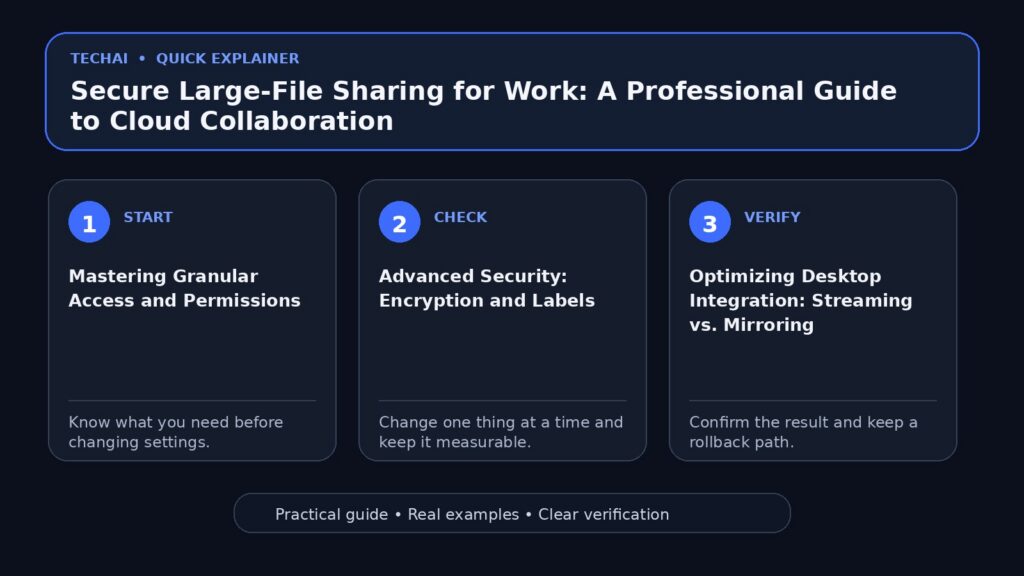
1. Mastering Granular Access and Permissions
The foundation of secure file sharing lies in the granular control of user permissions. Rather than granting broad access, professional environments require a tiered approach where users are assigned specific roles such as Viewer, Commenter, or Editor. In Google Drive, for instance, you can stop, limit, or change sharing settings at any time, even after a link has been distributed. This allows for dynamic control over who can see or modify sensitive documents as project requirements evolve. Viewers can only see the file, while Commenters can add suggestions without altering the original text, and Editors have full rights to modify content.

Microsoft OneDrive offers similar functionality, allowing users to share files and folders with specific individuals or groups within an organization. A critical aspect of this is the ability to manage 'visitor' access. For example, Google Drive allows sharing documents with visitors who do not have a Google account. These visitors can view, comment, or edit using a secure verification code, providing a secure way to collaborate with external partners without forcing them to change their ecosystem. This is particularly useful for short-term contracts or one-off reviews where creating a full account is unnecessary.
Administrative control also extends to the ownership of files. In a professional setting, it is often necessary to make someone else the owner of a file, especially during personnel transitions. This ensures that the organization retains control over the data even if the original creator leaves. Furthermore, users can set limits on sharing, such as preventing viewers and commenters from downloading, printing, or copying the file. These restrictions are vital for protecting proprietary information and ensuring that sensitive data does not leave the secure cloud environment without authorization.
- Viewer: Can see the file but cannot make changes or comments.
- Commenter: Can view and add suggestions without altering the original text.
- Editor: Full rights to modify content and manage internal sharing.
- Visitor Access: Temporary access for non-platform users via secure verification codes.
2. Advanced Security: Encryption and Labels
For highly sensitive work data, standard password protection is often insufficient. Google Workspace provides options for client-side encryption in Drive, Docs, Sheets, and Slides, ensuring that data is unreadable to unauthorized parties even if the cloud infrastructure is compromised. This level of security is essential for industries dealing with highly confidential information. Additionally, the use of 'Labels' in Google Drive allows administrators to categorize files based on their sensitivity level. These labels can trigger specific security policies, such as preventing the downloading or printing of documents marked as 'Confidential' or 'Internal Only'.
Apple's iCloud ecosystem utilizes the iCloud Keychain to keep passwords and secure information updated across all devices, which is vital for maintaining a secure login environment for file access. When working across platforms, such as using iCloud for Windows, it is important to ensure that the same security standards are applied to the local machine as they are in the cloud. This multi-layered approach reduces the risk of data leaks resulting from compromised hardware. iCloud also offers extra features through iCloud+ to enhance privacy and storage security for professional users.
Security is also maintained through active monitoring and abuse prevention policies. Platforms like Google Drive have established Abuse Program Policies to report violations and mitigate malicious content. This includes protections against prompt injection in AI tools and the ability to block or unblock specific people to prevent unauthorized sharing. By utilizing these administrative tools, organizations can create a 'walled garden' for their data, ensuring that only verified users can interact with sensitive assets while maintaining a clear audit trail of all file interactions.
- Client-side encryption for sensitive Workspace documents.
- Security labels to automate data protection policies.
- iCloud Keychain for synchronized, secure credential management.
- Abuse program policies to report and mitigate malicious content.
3. Optimizing Desktop Integration: Streaming vs. Mirroring
Managing large files often requires a bridge between local hardware and cloud storage. Google Drive for Desktop offers two primary methods for handling files: streaming and mirroring. Streaming allows you to see all your files in a virtual drive on your computer, but they only take up disk space when you open them. This is ideal for users with limited local storage who need access to massive file libraries. When a file is opened, it is cached locally, and changes are synced back to the cloud in real-time, ensuring that the local disk remains uncluttered.
Mirroring, conversely, stores all your files both in the cloud and on your local hard drive. This ensures that files are always available offline, which is critical for professionals who travel or work in areas with inconsistent internet access. However, mirroring requires significant disk space, as the local storage must equal the cloud usage. Microsoft OneDrive offers a similar feature called 'Files On-Demand,' which helps save disk space by keeping files online until they are needed. Users can right-click a file to make it 'Always keep on this device' if they know they will need it offline.
Choosing the right sync method is a balance between hardware capacity and the need for offline reliability. For macOS users, managing Drive for desktop may require advanced settings to customize how files are streamed or mirrored. It is also possible to use Google Drive with other services like Yahoo Mail or to work directly with Microsoft Office files within the Drive ecosystem. This flexibility allows professionals to maintain their preferred local workflows while benefiting from the security and accessibility of cloud-based storage and synchronization.
- Streaming: Saves local disk space; requires active internet for un-cached files.
- Mirroring: Full offline access; consumes local storage equal to cloud usage.
- Files On-Demand: OneDrive's method for selective local synchronization.
- Virtual Drives: How cloud folders appear as local disks (e.g., G: or OneDrive folder).
4. Leveraging AI for File Analysis and Organization
Modern file sharing is increasingly augmented by Artificial Intelligence. Google's Gemini integration allows users to perform deep research and analysis directly within Drive. Gemini can summarize long documents, retrieve specific data points across multiple files, and even organize files into logical structures. This reduces the time spent manually searching through folders for specific information in large-scale projects. Users can use 'Gems' or custom instructions to tailor Gemini's responses to their specific professional needs, creating a more personalized research assistant.
Microsoft's Copilot in OneDrive provides similar advantages, allowing users to ask questions about their files without even opening them. This is particularly effective for large datasets or lengthy reports where a quick summary is needed for a meeting. Copilot can summarize the contents of a folder or a specific document, providing a high-level overview that saves hours of reading. These AI tools are designed with data protection in mind, ensuring that the prompts and data used for analysis remain within the secure confines of the professional workspace and are not used to train public models.
AI also assists in the creation of new content. For example, Gemini in Drive can help create images, audio overviews, and even edit videos using Google Vids. This integration transforms the cloud storage platform from a passive repository into an active creative suite. Professionals can use 'Deep Research' features to find connections between disparate files, such as linking a financial spreadsheet to a project proposal. By automating the organization and analysis of data, AI allows teams to focus on high-level decision-making rather than administrative file management.
- Document Summarization: Quickly extract key points from large PDFs or Docs.
- Deep Research: Use Gemini to find connections between disparate files.
- Automated Organization: Let AI suggest folder structures and file placements.
- Data Retrieval: Ask natural language questions to find specific data points.
5. Managing Storage Limits and Large File Transfers
Large-file sharing is frequently throttled by storage quotas. Google storage is shared across Drive, Gmail, and Photos, meaning a large video file in Drive can impact your ability to receive emails. Monitoring storage usage is a critical administrative task. Both Google and Apple provide clear dashboards to check storage and offer paths to upgrade to higher tiers, such as iCloud+ or Google One, when limits are reached. Users can also manage their storage by identifying and deleting large files or recovering items from the trash to free up space.
To maintain efficiency, it is often necessary to 'free up space' by removing redundant files or utilizing 'Files On-Demand' features. In iCloud, users can choose exactly which data is stored in the cloud versus the device, such as optimizing photo storage. For professional teams, using 'Shared Drives' in Google Workspace is a superior alternative to individual storage. In a Shared Drive, the files belong to the team rather than a single person. This prevents data loss when an employee leaves the company, as the files remain in the shared space regardless of the original uploader's account status.
When dealing with massive transfers, it is important to understand the system requirements and browser limitations. Some platforms may have specific requirements for uploading folders versus individual files. For instance, Google Drive allows for the upload of entire folders, which is essential for maintaining directory structures in complex projects. If storage limits are exceeded, sync services may stop, and users will be unable to edit or save new versions of their work. Regularly auditing storage and moving completed projects to archival storage or Shared Drives is a best practice for maintaining a functional workspace.
- Shared Storage: Understanding how Drive, Gmail, and Photos share a quota.
- iCloud+ Upgrades: Accessing extra storage and premium privacy features.
- Shared Drives: Moving files to team-owned spaces for better management.
- Storage Dashboards: Tools to identify and delete large, unnecessary files.
6. Collaboration Workflow: Versions and Approvals
When multiple people edit a large file, version control becomes a significant risk. Google Drive addresses this by allowing users to check activity and file versions, making it possible to revert to a previous state if an error is made. This 'Version History' is a safety net for complex spreadsheets or design files where a single mistake could be costly. Users can see exactly who made changes and when they occurred, providing a clear audit trail for project management. This feature is also available for Microsoft Office files stored within the Drive ecosystem.
Furthermore, formal workflows can be managed through 'Approvals' in Google Drive. Instead of sending a file back and forth via chat or email, you can send a formal request for approval to specific team members. Reviewers can approve, reject, or leave feedback, and the file can be locked to prevent further changes during the review process. This creates a structured environment for finalizing documents and ensures that the 'final' version is clearly identified and protected from accidental edits.
For documents requiring legal validation, Google Workspace offers eSignature integration. Users can send signature requests and sign documents directly within Drive, streamlining the contract process. This is particularly useful for large-file sharing involving external vendors or new hires. By combining version control, formal approvals, and digital signatures, cloud platforms provide a comprehensive lifecycle for professional documents, from initial draft to final execution, all within a secure and tracked environment.
- Version History: Reverting to previous iterations of a document.
- Activity Feed: Tracking who made changes and when they occurred.
- Locking Files: Preventing edits during critical review periods.
- eSignatures: Requesting and applying digital signatures to PDFs.
7. Troubleshooting and Data Recovery
Even with the best systems, technical issues like sync errors or accidental deletions can occur. Google Drive and OneDrive both feature a 'Trash' or 'Bin' system where deleted files are held for a limited time (usually 30 days) before permanent removal. For large-scale data loss, Google Drive offers a 'Restore files in bulk' feature to recover many items at once. This is a critical tool for recovering from accidental folder deletions or sync errors that might have moved files to the trash unexpectedly.
Sync issues on desktop are often resolved by checking system requirements or updating the application. For instance, Drive for Desktop on macOS may require specific permissions in System Settings to function correctly. If a file is 'lost,' users should check the activity panel to see if it was moved to a different folder or if their access was revoked by the owner. Common issues also include 'limited access' errors, which occur when a user's permissions have been changed or if the file violates the platform's abuse policies.
For mobile users, managing and restoring mobile backups in Google Drive or iCloud is essential for data continuity. If a device is lost or damaged, these backups allow for a quick restoration of work files and settings. Users should also be aware of 'smart features and controls' that can affect how data is shared across different Google products. If technical problems persist, official help centers and community forums provide a wealth of information for troubleshooting specific error codes or browser compatibility issues.
- Trash Recovery: Restoring items before the 30-day permanent deletion.
- Sync Fixes: Troubleshooting Drive for Desktop or OneDrive sync errors.
- Activity Panel: Searching for 'lost' files by tracking recent movements.
- Bulk Recovery: Restoring deleted files in large quantities if errors occur.
8. Cross-Platform and Third-Party Integration
Professional workflows often involve a mix of different software ecosystems. Google Drive provides robust integration with third-party apps, allowing users to use Google Docs, Sheets, and Slides with platforms like Box, Dropbox, or Egnyte. This interoperability is crucial for teams that work with external partners who may use different storage solutions. Additionally, Google Drive's ability to work with Microsoft Office files without needing to convert them ensures that formatting remains consistent across different productivity suites.
Apple's iCloud for Windows is another vital tool for cross-platform work. It allows Windows users to access their iCloud photos, files, and passwords, bridging the gap between Apple hardware and PC-based work environments. This ensures that a professional using an iPhone for mobile work can seamlessly access those same assets on their office workstation. Furthermore, the integration of iCloud Photos with the Windows Photos app provides a streamlined way to manage high-resolution media assets across different operating systems.
Finally, the use of 'Google Workspace Experiments' allows users to test new features, such as advanced Gemini capabilities, before they are widely released. This allows tech-forward organizations to stay ahead of the curve in file management and AI integration. By understanding how these platforms interact—such as using Google Drive with Yahoo Mail or exporting data from Google Docs to other formats—professionals can build a flexible and resilient digital infrastructure that supports large-file sharing regardless of the specific tools used by their collaborators.
- Third-Party Apps: Using Google Drive with Box, Dropbox, or Egnyte.
- iCloud for Windows: Accessing Apple assets on a PC environment.
- Office Compatibility: Working with Microsoft Office files in Google Drive.
- Workspace Experiments: Testing new AI and collaboration features.
Key takeaways
- Use granular permissions (Viewer, Commenter, Editor) to maintain the principle of least privilege and protect data.
- Leverage 'Streaming' on desktop to access large file libraries without exhausting local disk space.
- Utilize AI tools like Gemini or Copilot to summarize and analyze large documents for faster decision-making.
- Implement Shared Drives for team projects to ensure file ownership remains with the organization rather than individuals.
- Regularly audit 'Version History' and 'Activity' to track changes and recover from accidental edits or deletions.
Common mistakes to avoid
- Sharing files via 'Anyone with the link' instead of specific email addresses for sensitive professional data.
- Neglecting to check storage quotas, leading to blocked emails or failed file synchronizations across devices.
- Assuming a deleted file is gone forever without checking the Trash or Bin for the 30-day recovery window.
- Failing to lock files during a formal approval process, which can lead to version conflicts and lost feedback.
Useful TechAI links
FAQ
Can I share files with people who do not have a Google or Microsoft account?
Yes, Google Drive allows you to share documents with 'visitors' who can view, comment, or edit using a secure verification code without needing a Google account. OneDrive also offers link-based sharing options that can be password protected for external users.
What is the difference between 'Streaming' and 'Mirroring' in Drive for Desktop?
Streaming keeps files in the cloud and only downloads them to a virtual drive when you open them, saving local space. Mirroring keeps a full copy of all files on both your computer and the cloud for constant offline access.
How do I recover a file that someone else deleted in a shared folder?
If the file was in a Shared Drive, it moves to the Shared Drive's trash where managers can restore it. In a standard shared folder, the owner of the file is typically the only one who can restore it from their personal trash.
Is the AI (Gemini or Copilot) safe to use with confidential work files?
Google and Microsoft state that their AI integrations for Workspace and Microsoft 365 are designed to protect data privacy. Your prompts and file content are kept within the secure professional environment and are not used to train public models.