
The modern web experience is increasingly defined by the integration of generative artificial intelligence directly within the browser interface. Rather than relying on external tools or manual copy-pasting, users can now leverage built-in features like Google Gemini in Chrome and Microsoft Copilot in Edge to process vast amounts of information. These tools are designed to assist with summarizing long-form content, navigating complex site structures, and even searching through personal browsing history using natural language queries. By moving these capabilities into the browser's side panels and toolbars, developers have reduced the friction associated with deep research and daily digital tasks.
However, effectively using these AI features requires more than just knowing they exist; it involves understanding how to activate experimental settings, manage on-device versus cloud-based models, and troubleshoot technical barriers like JavaScript requirements. Whether you are using Chrome on a Googlebook or Edge on a Windows PC, the goal is to transform the browser from a simple window into an active assistant. This guide provides a comprehensive walkthrough of the current AI landscape in major browsers, focusing on practical applications for summarization, navigation, and information organization based on official technical documentation.
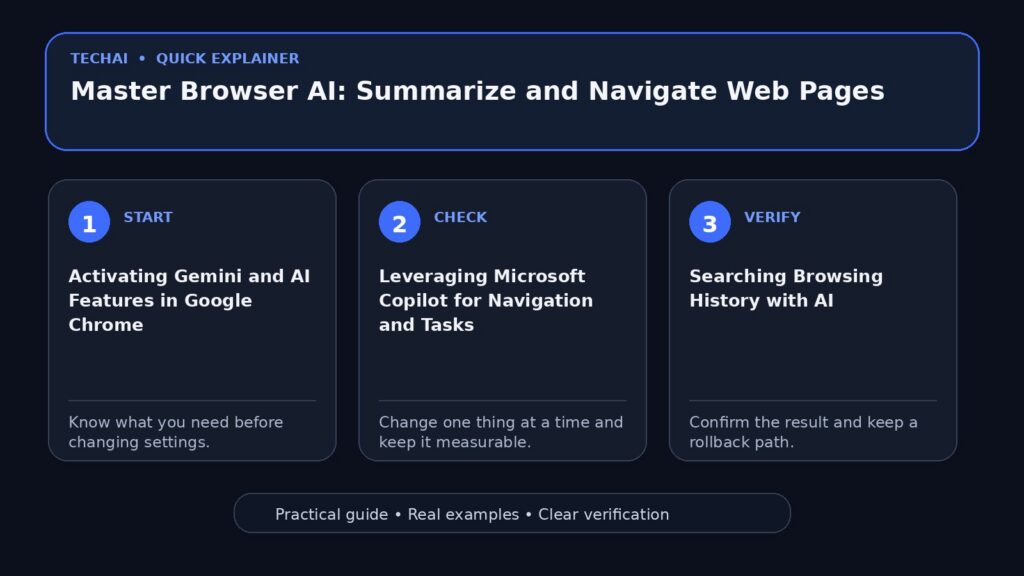
Activating Gemini and AI Features in Google Chrome
Google Chrome has integrated Gemini directly into the browsing experience, allowing users to interact with an AI assistant without leaving their active tab. To get started, users typically need to sign in to their Google Account within Chrome and ensure they are using the latest version of the browser. Gemini can be accessed through specific entry points like the side panel or by using the 'Ask Gemini' feature to complete tasks. This integration is designed to help users get answers, summarize content, and even perform 'auto browse' actions where the AI assists in navigating through web content to find specific information.

Beyond standard chat interactions, Chrome offers a suite of experimental AI features that can be managed through the browser settings. These include 'Help me write' for content creation and 'AI Mode' for specialized browsing tasks. Users can also customize their browser's appearance using AI-generated themes, which are accessible through the 'Customize Chrome' options. It is important to note that the availability of these features may vary based on the device, such as a standard PC versus a Googlebook, and may require joining the Chrome Beta for Android or other early-access programs to see the latest updates.
When using Gemini in Chrome, the browser can also assist with visual tasks. For instance, users can search with Google Lens directly in the browser or even 'try on clothes virtually' in specific shopping contexts. These features are often housed in the side panel, which can be managed to show or hide various AI tools depending on the user's current needs. Understanding how to toggle these panels is key to maintaining a clean workspace while keeping AI assistance within reach.
- Sign in to your Google Account to sync AI preferences.
- Access Gemini via the Chrome side panel for real-time assistance.
- Enable experimental features in settings to access 'Help me write'.
- Use 'Auto browse' to let Gemini help navigate complex pages.
- Check 'Gemini in Chrome availability' for your specific region or device.
Leveraging Microsoft Copilot for Navigation and Tasks
Microsoft Edge utilizes Copilot as its primary AI assistant, integrated deeply into the sidebar to help users 'get more done.' Copilot in Edge is designed to handle everyday tasks, such as summarizing the page currently being viewed, comparing products, or drafting emails based on web content. Because it is built into the browser, it has context of the active tab, which allows it to provide more relevant summaries than a standalone AI tool might. This context-aware navigation is a significant advantage for users dealing with long technical documents or multi-page articles.
To maximize the utility of Copilot, users should familiarize themselves with the Edge sidebar. This area not only houses the AI assistant but also integrates with other Edge features like 'Collections' and 'Sync.' By using Copilot alongside Collections, users can ask the AI to organize gathered information or summarize a group of saved links. This creates a more cohesive workflow where the AI acts as a librarian for the user's digital research. Additionally, Copilot can assist with troubleshooting browser issues or finding specific settings within the Edge interface.
Security and privacy are also integrated into the Copilot experience in Edge. The browser uses SmartScreen and tracking prevention to ensure that while the AI is assisting with navigation, the user remains protected from unsafe sites. Users can sign in to sync their Copilot history and preferences across devices, including iOS and Android versions of Edge, ensuring that a summary generated on a desktop is available when moving to a mobile device.
- Open the Edge sidebar to initiate a Copilot session.
- Ask Copilot to 'summarize this page' for a quick overview of long articles.
- Use Copilot to organize web research into Edge Collections.
- Sync Copilot data across devices by signing into your Microsoft account.
- Utilize the sidebar for multitasking without switching tabs.
Searching Browsing History with AI
One of the most powerful navigation features in modern browsers is the ability to search through browsing history using natural language, powered by AI. In Google Chrome, this feature allows users to move beyond simple keyword matching. Instead of remembering the exact title of a page, a user can ask a question about a site they visited previously, and the AI will attempt to locate the relevant entry in the history based on the content of the pages viewed.
This AI-driven history search is particularly useful for users who manage large volumes of information and may not remember where they saw a specific detail. By integrating Gemini with the history function, Chrome can parse through past activity to find specific answers. This feature can be managed within the Chrome settings, where users can also delete their history or activity if they prefer not to have it indexed for AI searching. It represents a shift from a chronological list of links to a searchable database of knowledge.
To use this effectively, users should ensure that 'Search your browsing history in Chrome with AI' is enabled in their privacy and security settings. This feature often works in tandem with on-device models to ensure that the processing of personal data is handled securely. If a user frequently uses Incognito mode, they should be aware that this data is typically not recorded or searchable by the AI, maintaining the standard privacy boundaries of private browsing.
- Enable 'Search history with AI' in Chrome settings.
- Use natural language queries like 'What was that article about solar panels?'
- Manage your data by deleting specific history entries or activity.
- Understand that Incognito browsing is excluded from AI history indexing.
- Use the side panel to view AI-assisted history results alongside current tabs.
Using Reading Mode and Accessibility AI
AI features in browsers are not limited to text generation; they also significantly enhance accessibility and readability. Chrome's 'Reading mode' and 'Listen to this page' mode are prime examples. Reading mode uses AI to strip away distracting elements like ads and sidebars, presenting the core text in a customizable format. This is essential for navigating long web pages that are cluttered with visual noise, allowing the user to focus on the content that matters.

The 'Listen to this page' feature uses high-quality text-to-speech AI to read content aloud, which is beneficial for users with visual impairments or those who prefer to consume information while multitasking. This mode often includes controls for playback speed and voice selection, making it a versatile tool for navigating long-form journalism or academic papers. These features are often found under the 'Accessibility' or 'More tools' menus in the browser settings.
On Googlebooks, these accessibility features are even more integrated, with specific settings for text display and hearing accessibility. Users can adjust text, image, and video sizes (zoom) to complement the AI-driven reading modes. By combining these tools, users can create a highly personalized browsing environment that adapts to their specific sensory needs, ensuring that no web page is too complex to navigate or understand.
- Activate 'Reading mode' to remove ads and distractions from long articles.
- Use 'Listen to this page' for AI-powered text-to-speech functionality.
- Adjust zoom and text display settings to improve visual clarity.
- Explore Googlebook-specific accessibility settings for a tailored experience.
- Toggle these modes via the 'More' menu or the side panel.
Managing On-Device Generative AI Models
A critical aspect of modern browser AI is the distinction between cloud-based processing and on-device models. Google Chrome allows users to 'Manage on-device Generative AI models,' which provides a layer of privacy and speed for certain tasks. On-device models process data locally on the user's hardware, reducing the need to send sensitive information to external servers. This is particularly relevant for features like 'Help me write' or local history searching.
Managing these models involves understanding the hardware requirements of your device. Some AI features may only be available on devices with specific processors or sufficient RAM to handle the computational load. In Chrome, users can see which models are active and manage how they are updated. This transparency is part of a broader effort to give users control over how generative AI interacts with their data and their device's performance.
For users concerned about privacy, on-device site data management is a key setting. Chrome provides options to learn about on-device site data and how it is used to power AI features. By keeping the processing local, browsers can offer advanced features like 'AI to search and ask about your tabs' without compromising the user's broader data security profile. Users should periodically check these settings to ensure their browser is optimized for both performance and privacy.
- Check Chrome settings to manage on-device Generative AI models.
- Understand that on-device processing enhances privacy for sensitive tasks.
- Monitor device performance, as local AI models require hardware resources.
- Review 'on-device site data' settings to control local information storage.
- Update your browser regularly to receive the latest optimized AI models.
Organizing Information with AI and Collections
Navigating long web pages often leads to the discovery of multiple points of interest that need to be organized. Microsoft Edge's 'Collections' feature, enhanced by AI, allows users to group related tabs, images, and text snippets into organized folders. Copilot can then interact with these Collections, providing summaries of the gathered material or suggesting related topics to explore. This turns the browser into a sophisticated research assistant that helps bridge the gap between finding information and using it.
In Chrome, users can 'Use AI to search and ask about your tabs,' which is invaluable when dozens of pages are open simultaneously. Instead of clicking through every tab to find a specific piece of information, the user can query the AI to identify which tab contains the answer. This feature significantly reduces the cognitive load of managing complex research projects and helps users navigate their own open sessions more efficiently.
Furthermore, Chrome allows for the creation of shortcuts for websites and the management of multiple profiles. When combined with AI features, these profiles can maintain separate AI training or preferences, such as different 'Help me write' styles for work and personal use. Organizing the browser in this way ensures that AI assistance is always contextualized to the user's current task, whether they are shopping, working, or studying.
- Use Edge Collections to group research and get AI-generated summaries.
- Query Chrome's AI to find specific information across all open tabs.
- Create website shortcuts for quick access to AI-heavy tools.
- Manage multiple browser profiles to separate AI preferences and history.
- Utilize the 'Search tabs' feature to quickly navigate large sessions.
Troubleshooting AI and Browser Performance
AI features are highly dependent on the underlying browser environment being correctly configured. A common issue is the disabling of JavaScript; as noted in official support documentation, if JavaScript is disabled, required parts of a site—including AI interfaces—may fail to load. Users should check their browser settings to ensure JavaScript is enabled and that no aggressive ad blockers or extensions are interfering with the AI's ability to communicate with its models.
Network issues can also impact AI performance, especially for cloud-based features like Gemini or Copilot. If the browser is unable to reach the necessary servers, AI summaries and search features will become unavailable. Users should verify their connection and check if their browser is 'managed' by an organization, as IT administrators may restrict access to generative AI features for security or policy reasons.
If AI features are not appearing as expected, resetting Chrome or Edge settings to their defaults can often resolve the issue. This clears out conflicting configurations or corrupted site data that might be blocking the AI. Additionally, users should ensure they are not in a guest mode or a restricted profile, as these environments often disable advanced AI and sync capabilities to protect user privacy.
- Ensure JavaScript is enabled in browser settings to load AI components.
- Disable ad blockers if they interfere with AI side panels or chat boxes.
- Check if your browser is 'managed' by an IT admin who may limit AI.
- Reset browser settings to default if AI features fail to launch.
- Verify network stability for cloud-dependent AI tasks.
Key takeaways
- Gemini and Copilot are integrated into browser side panels for context-aware assistance.
- AI-powered history search allows for natural language queries of past browsing activity.
- Reading Mode and 'Listen to this page' use AI to improve content accessibility.
- Users can manage on-device AI models to balance performance and data privacy.
- JavaScript must be enabled for AI features and modern web components to function.
Common mistakes to avoid
- Attempting to use AI features while JavaScript is disabled in browser settings.
- Expecting AI history search to include pages visited during Incognito mode sessions.
- Ignoring browser updates, which are required for the latest AI model integrations.
- Overlooking the side panel, where most browser-based AI tools are located.
Useful TechAI links
FAQ
How do I enable Gemini in my Chrome browser?
Ensure you are signed into your Google Account and using the latest version of Chrome. You can typically find Gemini in the side panel or by enabling experimental AI features in the browser's settings menu.
Can I use browser AI features on my mobile device?
Yes, both Chrome and Edge offer AI-integrated features on iOS and Android. You may need to join the Chrome Beta or sign in to sync your Copilot settings across devices.
What should I do if a web page won't load its AI summary?
Check your internet connection and ensure that JavaScript is enabled. Also, verify that no browser extensions or ad blockers are preventing the AI tool from accessing the page content.
Are my AI interactions private?
Browsers offer various controls, including 'on-device Generative AI models' that process data locally. However, cloud-based features like Gemini and Copilot may send data to servers; review your browser's privacy policy for specific details.